Task Templates
Task templates form the foundation of your organisation’s maintenance tasks, serving as a framework for scheduling and managing maintenance across all buildings.
By configuring a task template, you can quickly apply maintenance tasks to any building with predefined schedules and settings. These templates can be further customised on a building-by-building basis to meet specific maintenance needs.
Creating a Task Template
Access the Task Templates View by clicking the icon in the navigation bar.
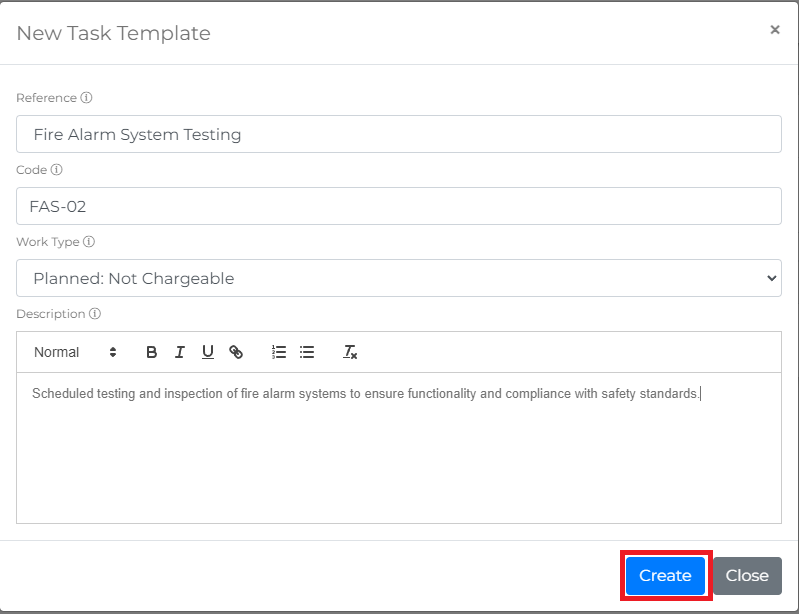
To create a new task template, click the Create a New Task Template button. This opens the New Task Template form.

Each task template requires the following information:
- Reference: A unique name or identifier for the template.
- Code: An internal reference code, such as a custom code or a standard code (e.g., SFG20).
- Work Type: Specifies whether the task is chargeable or not. Options include:
- None
- Planned Chargeable
- Planned Not Chargeable
- Description: A detailed description of what the template covers.
Click the Create button to save the template.
Managing Task Templates
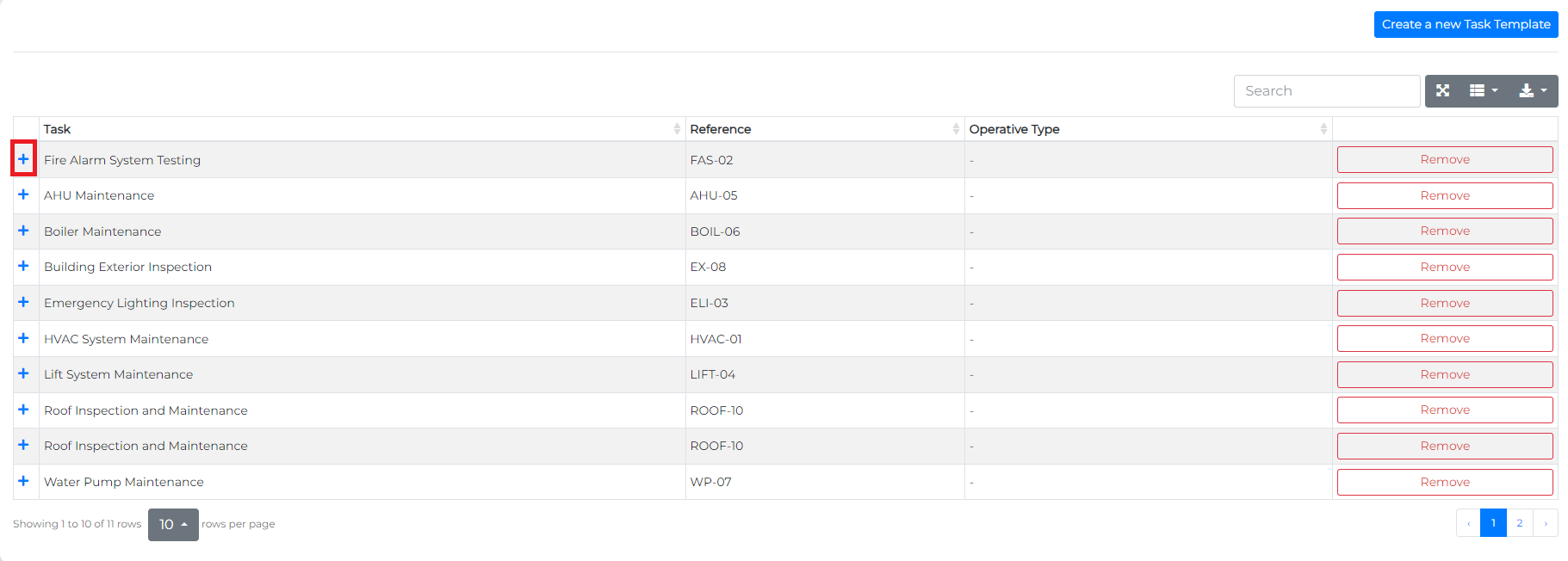
After creating a task template, you can access and manage it from the Task Templates View.
Click the icon next to a template to expand its configuration options.
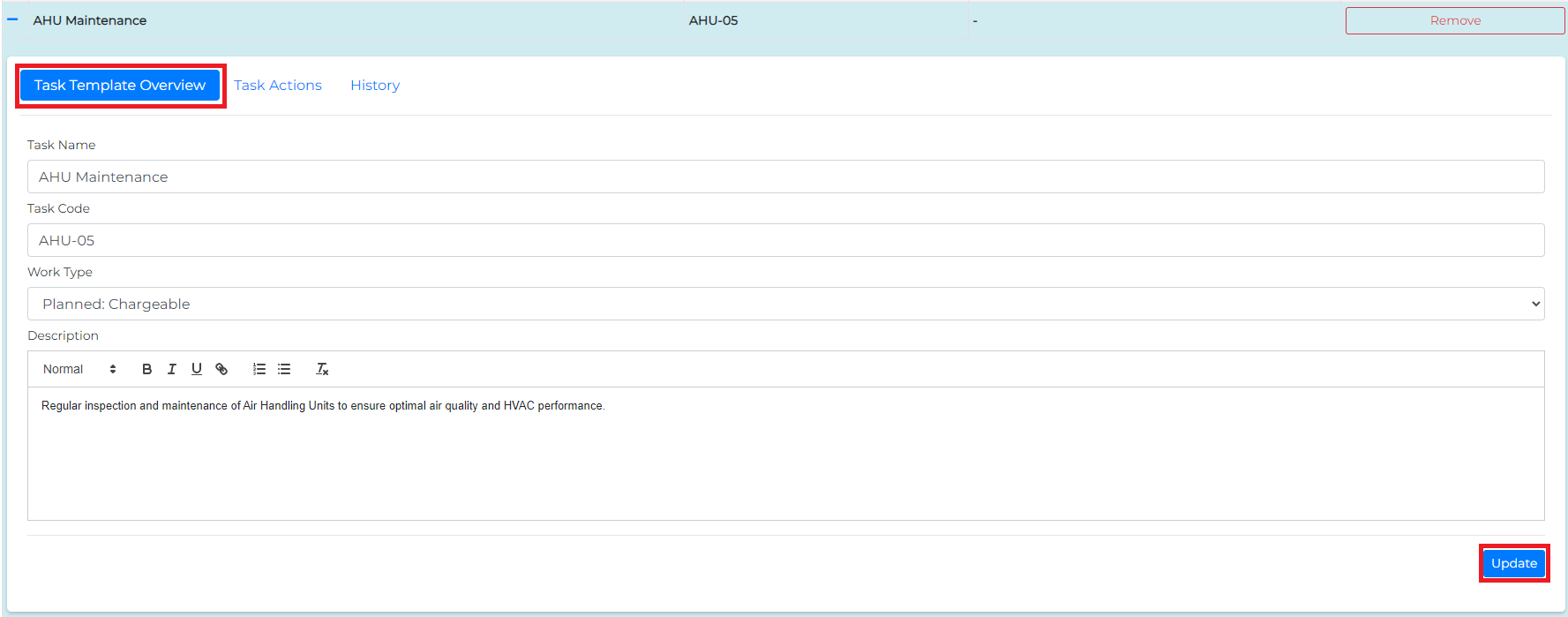
From the Task Template Overview tab, you can edit the template’s details. Remember to save any changes by clicking the Update button at the bottom right.
Task Template Actions
Task actions represent the specific tasks or labour activities that must be performed as part of the overall template. A task template acts as a container for these actions, allowing you to schedule and manage them efficiently.
Task actions are managed from the Task Actions tab.
Adding a Task Template Action
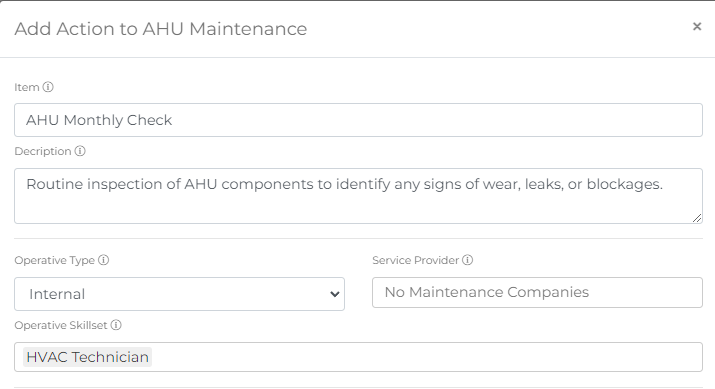
To add an action to a task template, navigate to the Task Actions tab and click the Create New Action button. This opens the Add Action form for the current template.

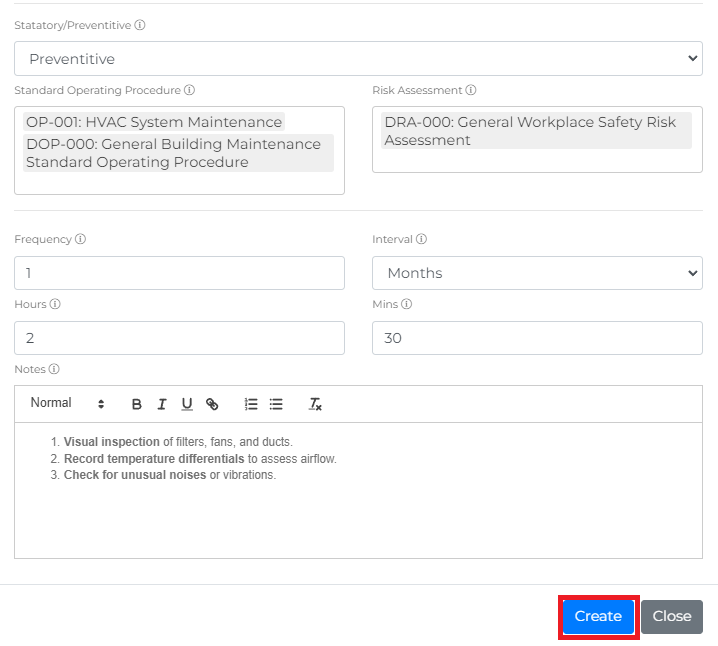
An action requires the following details:
- Item: The name or title of the action.
- Description: A clear description of what the action entails.
- Operative Type: Specify if the action requires an internal or external operative.
- Service Provider: The maintenance company or service provider responsible for the action.
- Operative Skillset: Specific skills required by the operative for this action.
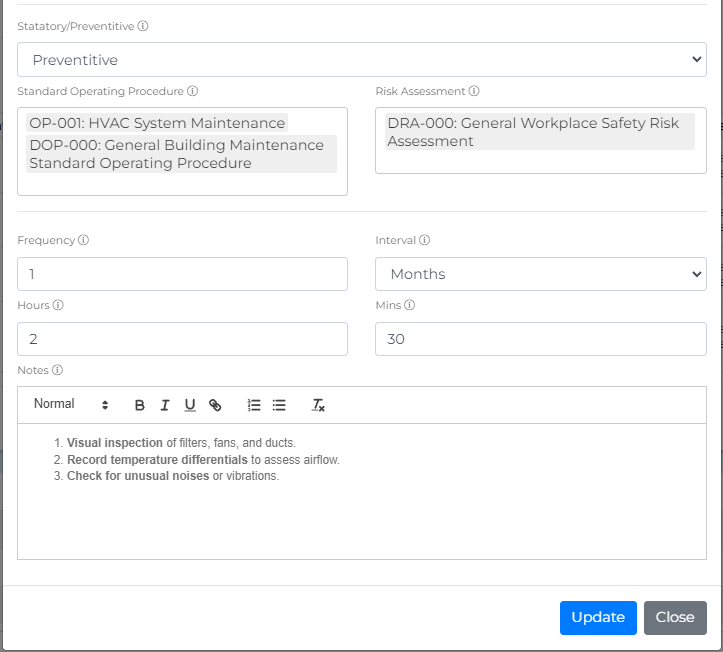
- Statutory/Preventive: Indicates if the action is legally required (statutory) or preventive.
- Standard Operating Procedures: Links to any procedures that must be followed while performing the action.
- Risk Assessments: Links to risk assessments that the operative must review.
- Frequency: The interval between occurrences, e.g., every 3 months.
- Interval: The time unit for the frequency (e.g., days, weeks, months).
- Hours: Expected duration in hours for completing the action. Enter 0 if less than 1 hour.
- Minutes: Additional minutes required for the action. If zero, explicitly enter 0.
- Notes: Formatted notes to provide a detailed description of the action.
Click the Create button at the bottom right of the form to save the task action.
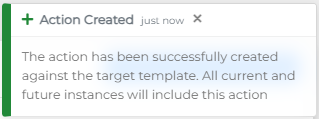
Upon successful creation, you will see a green "success" message. If the creation fails, a red error message will appear—refer to this message for details on why the task could not be added.
Managing Task Template Actions
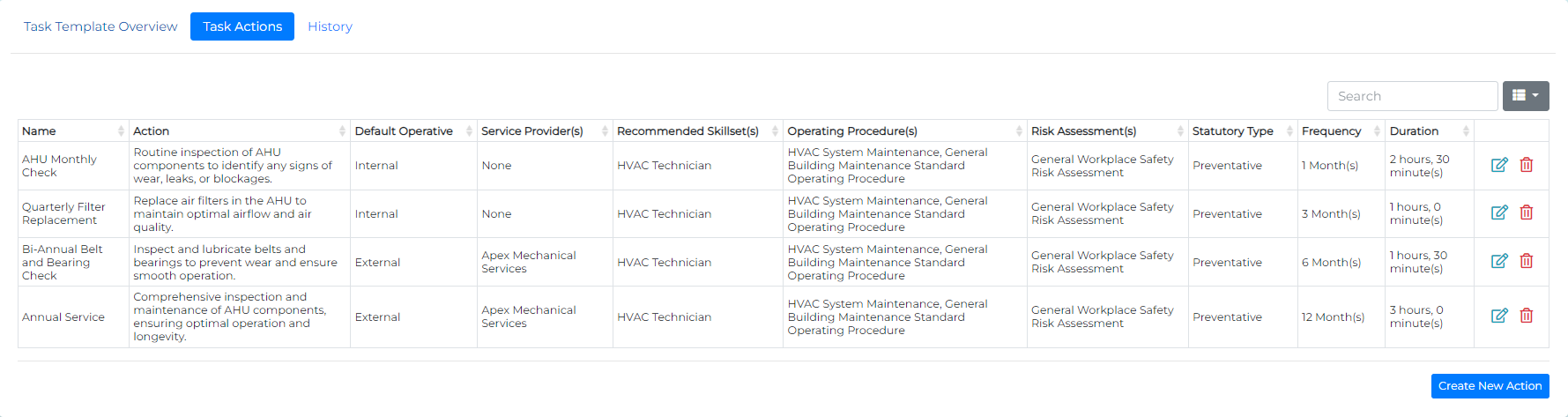
As you add actions to a template, they will be listed in the Task Actions tab.
Removing a Task Template Action
To remove an action, click the icon next to the action in the Task Actions tab.
Note: Removing an action from a template will not automatically remove the corresponding actions from buildings where the template has already been applied. To remove actions from a specific building, go to the Building Task Management view.
Editing a Task Template Action
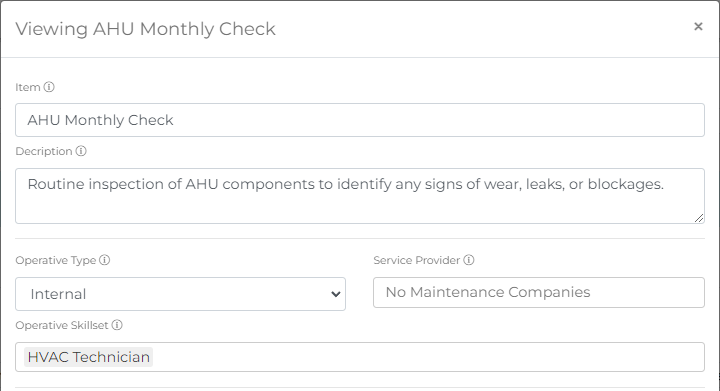
To edit an action, click the icon in the Task Actions tab. This will open the View Action form, allowing you to make necessary changes.
Click the Update button to save the changes.
Important: If this template has already been applied to buildings, editing the top-level template will not update the actions that have already been created for those buildings. This is to prevent accidental overwriting of customisations made at the building level.
Viewing a Task Template's History
You can review the history of a task template from the History tab in the template’s configuration view.
The history logs each change made to the template, displaying the date/time, user, and a system-generated note for a complete audit trail.

When you are satisfied with the coverage of your building tasks you can move on to assigning the Task temapltes to your buildings.