Dashboard Overview
The Maintenance Dashboard is the central hub where operatives can manage their assigned tasks efficiently.
Default View
By default, the dashboard displays all tasks currently assigned to the operative.
When No Tasks Are Assigned
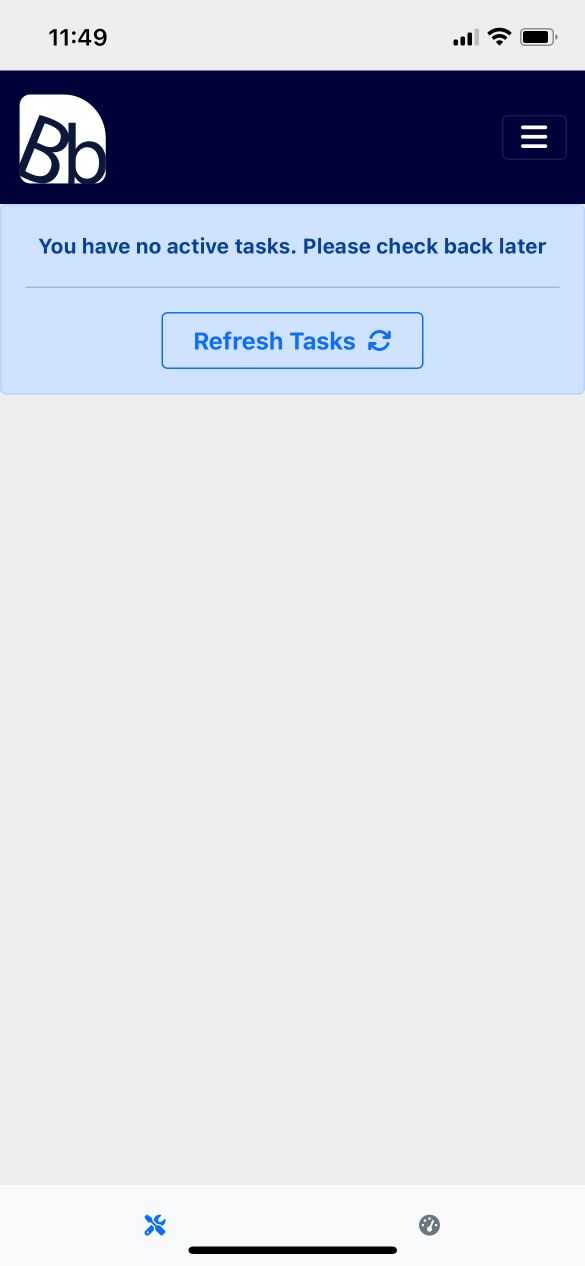
If there are no tasks available, a No Active Tasks message is displayed, along with an option to refresh the tasks.
Populated Task Dashboard
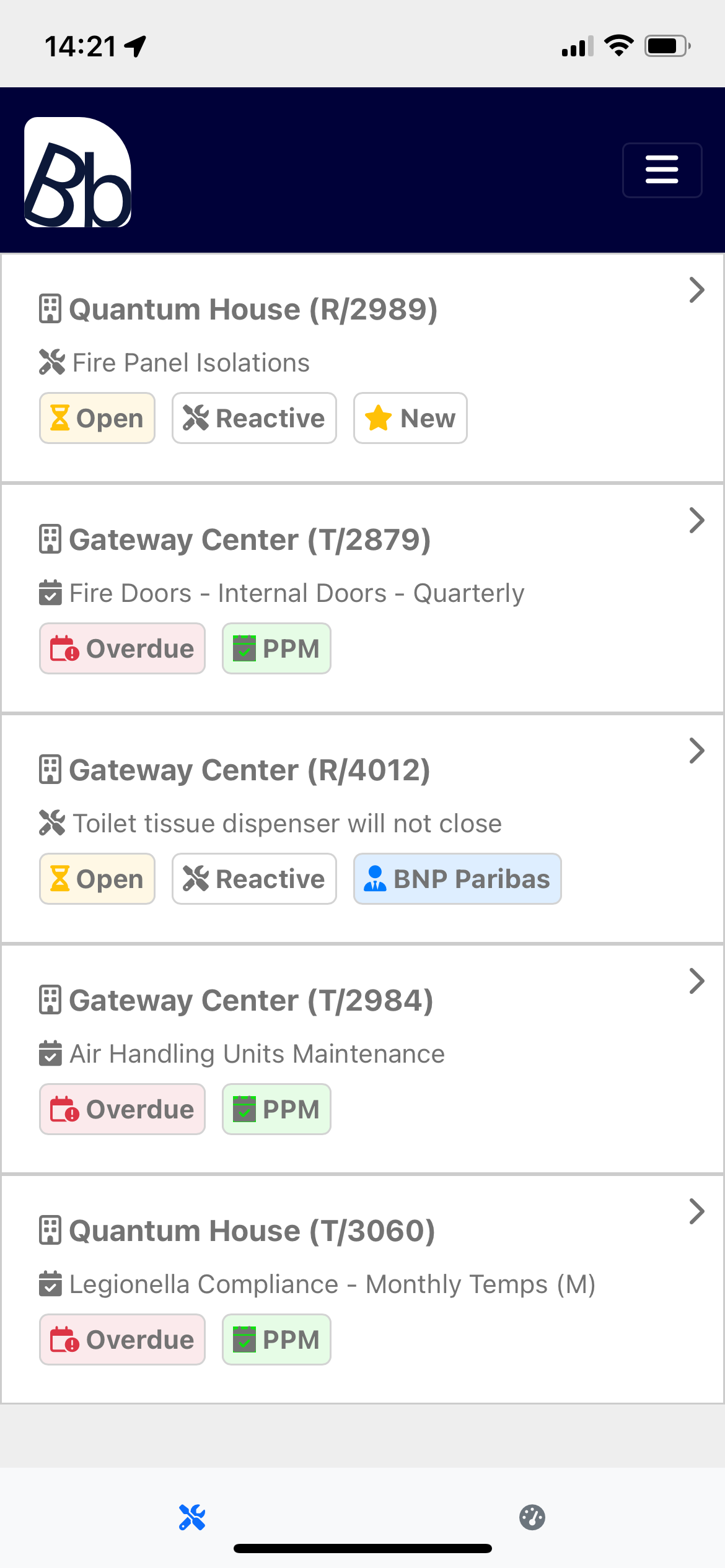
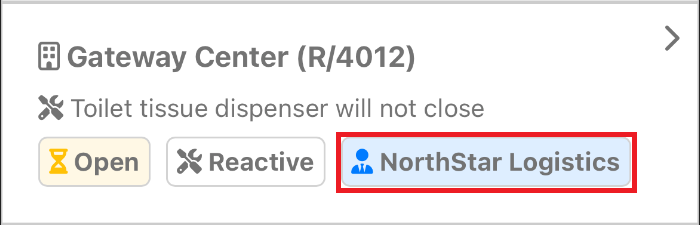
As administrators assign tasks and scheduled tasks are automatically allocated to operatives, the dashboard populates with Task Cards. These cards provide operatives with a quick overview of their tasks and facilitate easy interaction.
Understanding Task Cards
Each Task Card contains key information to help operatives manage their tasks effectively.
Task Location and Reference
The first line of the Task Card shows:
- Building Name: The location where the task is to be performed.
- Task Reference Number: A unique identifier for the task.

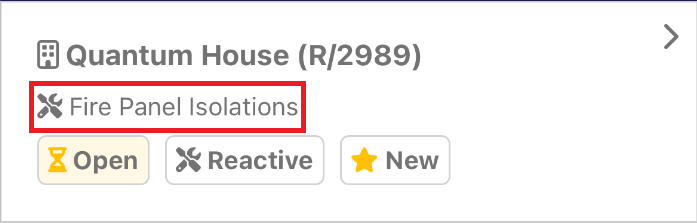
Task Item Details
Below the building name is the task item. To view full task details, click on the Task Card.
Task Badges
Task Cards have various badges to help operatives quickly identify the status and type of each task.
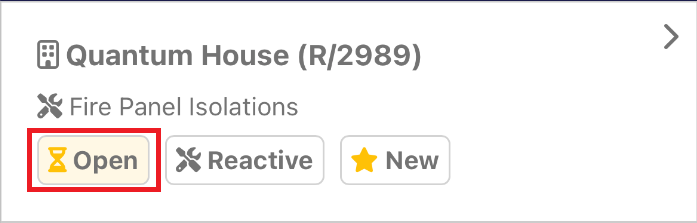
Status Badge
The first badge indicates the status of the task. Possible statuses include:
- Open
- Overdue
- Awaiting Paperwork
- Closed
Task Type Badge
The second badge indicates whether the task is:
- Reactive: Unplanned tasks that require immediate attention.
- Scheduled (PPM): Planned Preventative Maintenance tasks.

New Task Badge
When a task is newly added to an operative's dashboard, it displays a New badge to highlight that it has not yet been viewed. This badge remains until the operative clicks on the Task Card, which flags the task as Acknowledged to system administrators.

Customer Task Badge
A blue Customer badge appears when a task is associated with a maintenance customer. This helps operatives prioritise customer tasks.
No Internet Access
The Building Book Operative App requires an internet connection to function properly.
If your device loses internet connection, the app will notify you that the connection is lost. When you see this message, please avoid submitting any data, such as logs, documents, or timeblocks, as this data may be lost and will not be recoverable.
