Filtering Tasks
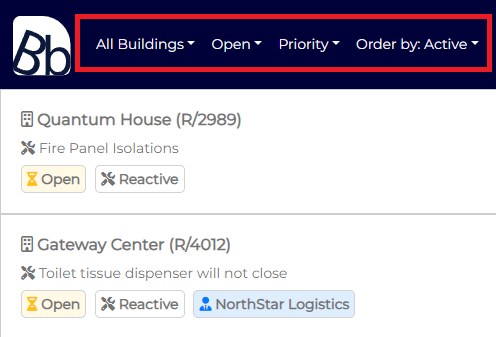
Tasks can be filtered using the options located in the navigation bar at the top of the app. By default, when the app is first launched, no filters are applied, so you will see all assigned tasks.
If there are no tasks available, a No Active Tasks message is displayed, along with an option to refresh the tasks.
The filter options are always visible on larger devices, such as desktop computers and landscape tablets.
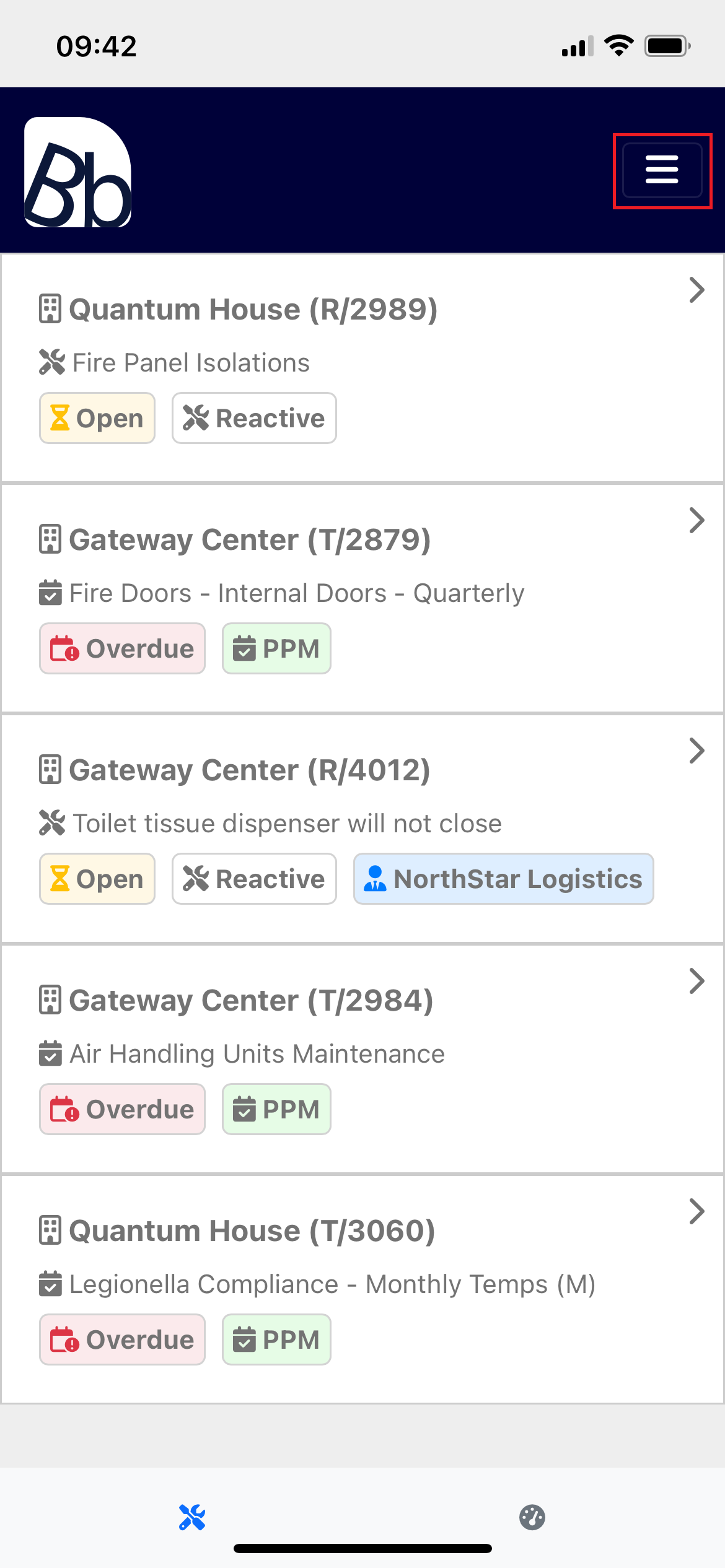
On smaller devices, such as mobile phones, the filters are accessed by clicking the [ ] icon.
Desktop View
Mobile View
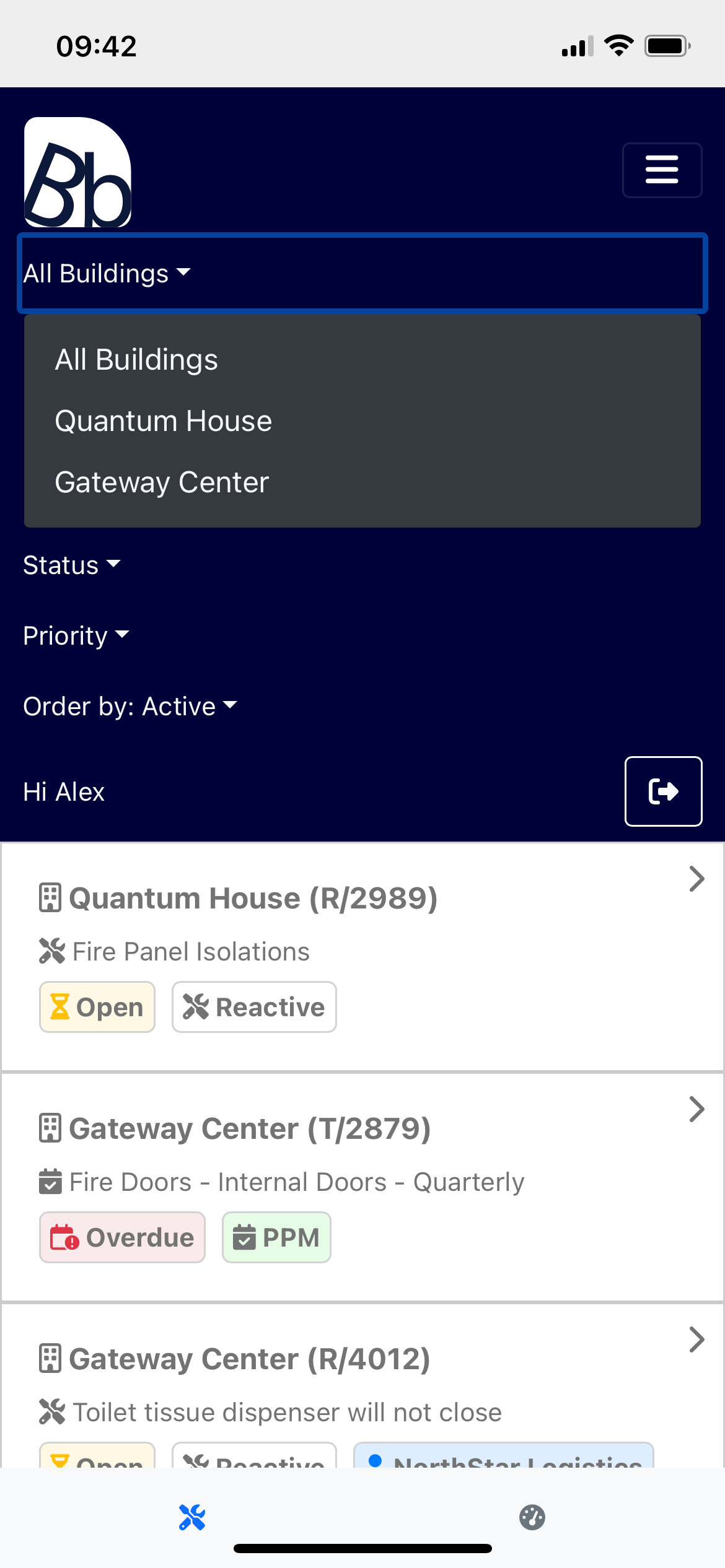
Building Filter
The Building filter defaults to All Buildings when the app is loaded.
The list will show all buildings the operative is assigned to, regardless of whether they contain tasks or not. This allows operatives to clearly see they have no active tasks for a building, rather than just hiding the building from their view.
Status Filter
The Status filter defaults to All and allows operatives to filter tasks based on their status.
Closed tasks will remain visible until they are finalized by an admin, allowing operatives to continue adding logs, documents, etc., if required. If an operative has elevated close task permissions assigned by an admin, closing a task will finalize and remove the task from their view.

Priority Filter
Task priorities are configured by admins. This filter allows operatives to display only tasks with specific priorities.

Order By
The Order By control lets operatives sort tasks based on various parameters. By default, active tasks are shown first, meaning any task an operative is actively working on will always display at the top when the app is launched. Other sorting options include:
- Due Date: Tasks are displayed in descending order of their due date.
- Created Date: Sorts tasks based on when they were created.
- Name: Sorts tasks alphabetically by name.
