Install Operative App on Android
You can install Building Book's Operative App on your Android device for a native app-like experience. Follow these steps to install.
Prerequisites
- An Android device.
- Google Chrome browser (or any Chromium-based browser).
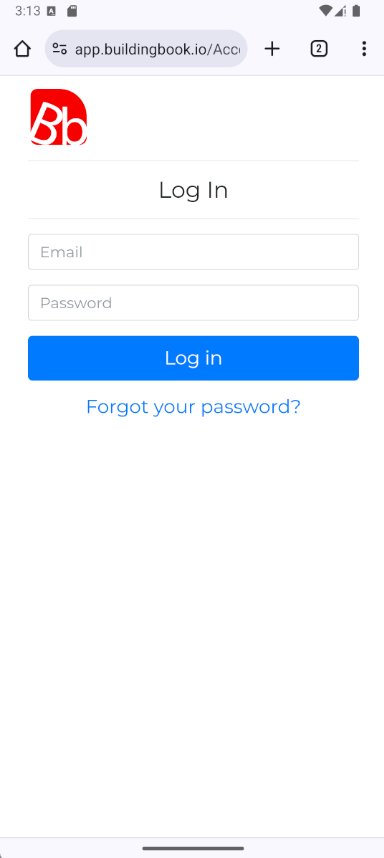
Log in to Building Book with your Operative Account
Open Chrome and go to https://app.buildingbook.io.
Log in using your operative account credentials.
Installation Steps
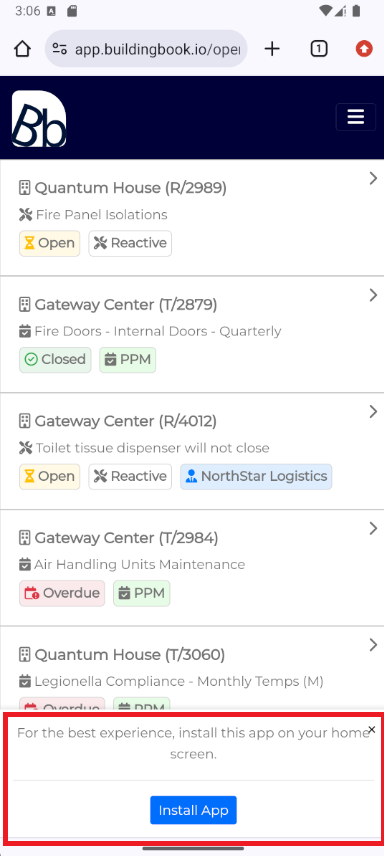
Step 1: Click the 'Install App' button at the bottom of the screen
You should see a prompt at the bottom of the page asking if you want to add the app to your home screen. Tap Install App.
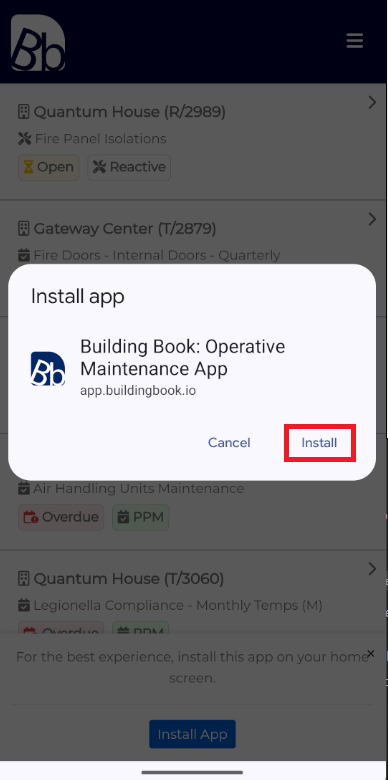
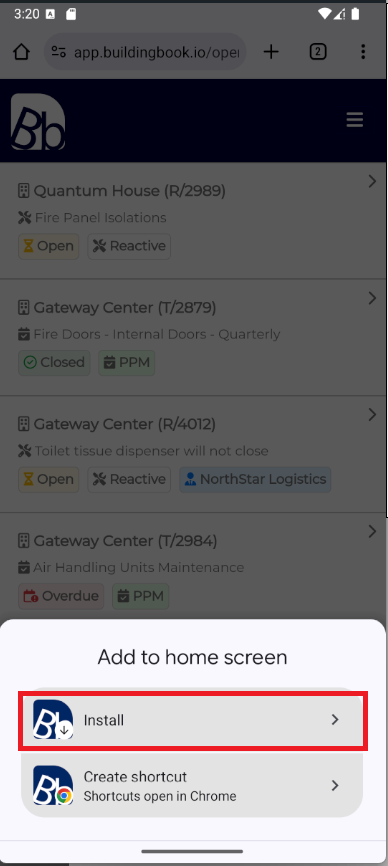
Step 2: Click install on the pop-up window
You should see a prompt saying Install App. Tap Install to proceed.
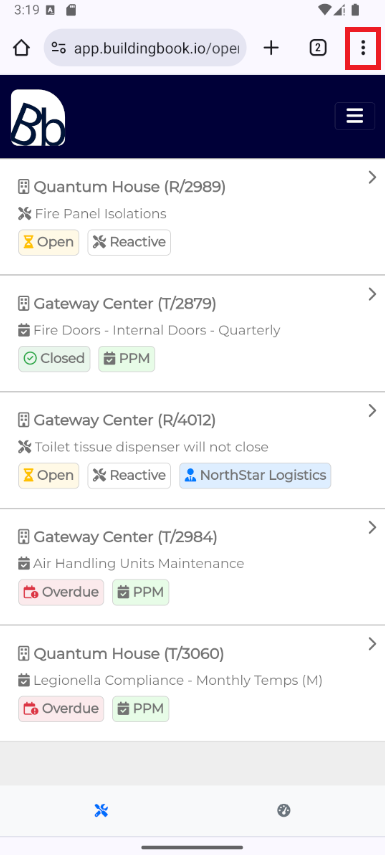
Step 2.1: Manual Installation (If No Prompt Appears)
If the prompt doesn't appear, tap the Menu (three dots) icon in the top-right corner of Chrome.
Select Add to Home screen
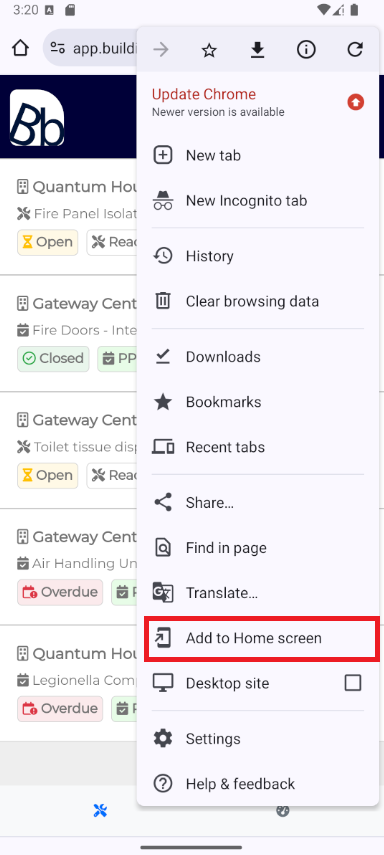
Step 3: Add to Home screen
After selecting Add to Home screen, confirm the app installation.
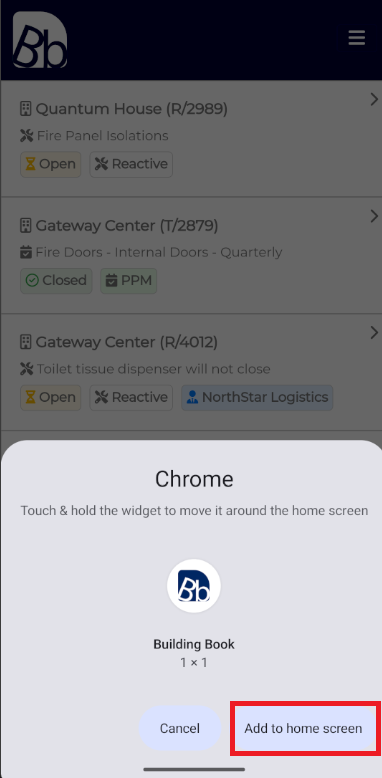
Step 4: Confirm Addition
Confirm the addition by tapping the Install option.
Ensure the app is on your home screen
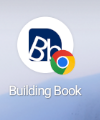
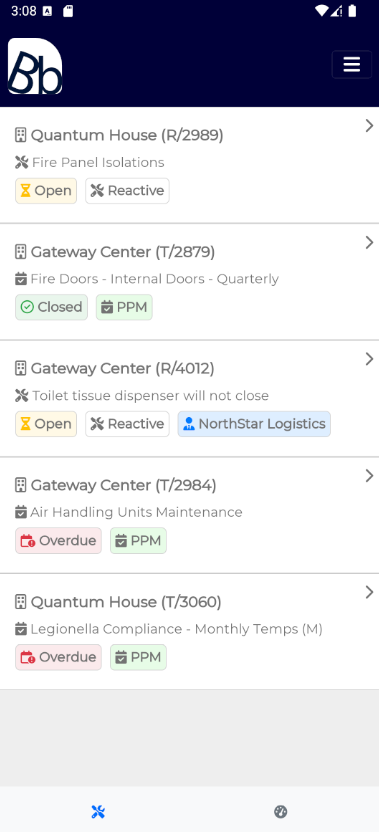
Step 5: Launch the App from Your Home Screen
Troubleshooting
- Can't find the "Add to Home screen" option?
- Ensure you're using Chrome or a Chromium-based browser.
- Make sure you're connected to the internet and the page has fully loaded.