Install Operative App on Desktop
You can install Building Book's Operative App as a Progressive Web App (PWA) on your desktop, allowing you to use it like a native desktop application. This guide will show you how to install the app on supported desktop browsers, including Google Chrome, Microsoft Edge, and Mozilla Firefox.
Prerequisites
- A desktop computer running Windows, macOS, or Linux.
- A supported browser:
- Google Chrome version 70 or later
- Microsoft Edge version 79 or later
- Mozilla Firefox (note: limited PWA support)
- Other Chromium-based browsers
Installation Steps (Chrome or Edge)
Open Your Browser and Navigate to BuildingBook.io
Open Chrome or Edge and go to https://app.buildingbook.io.
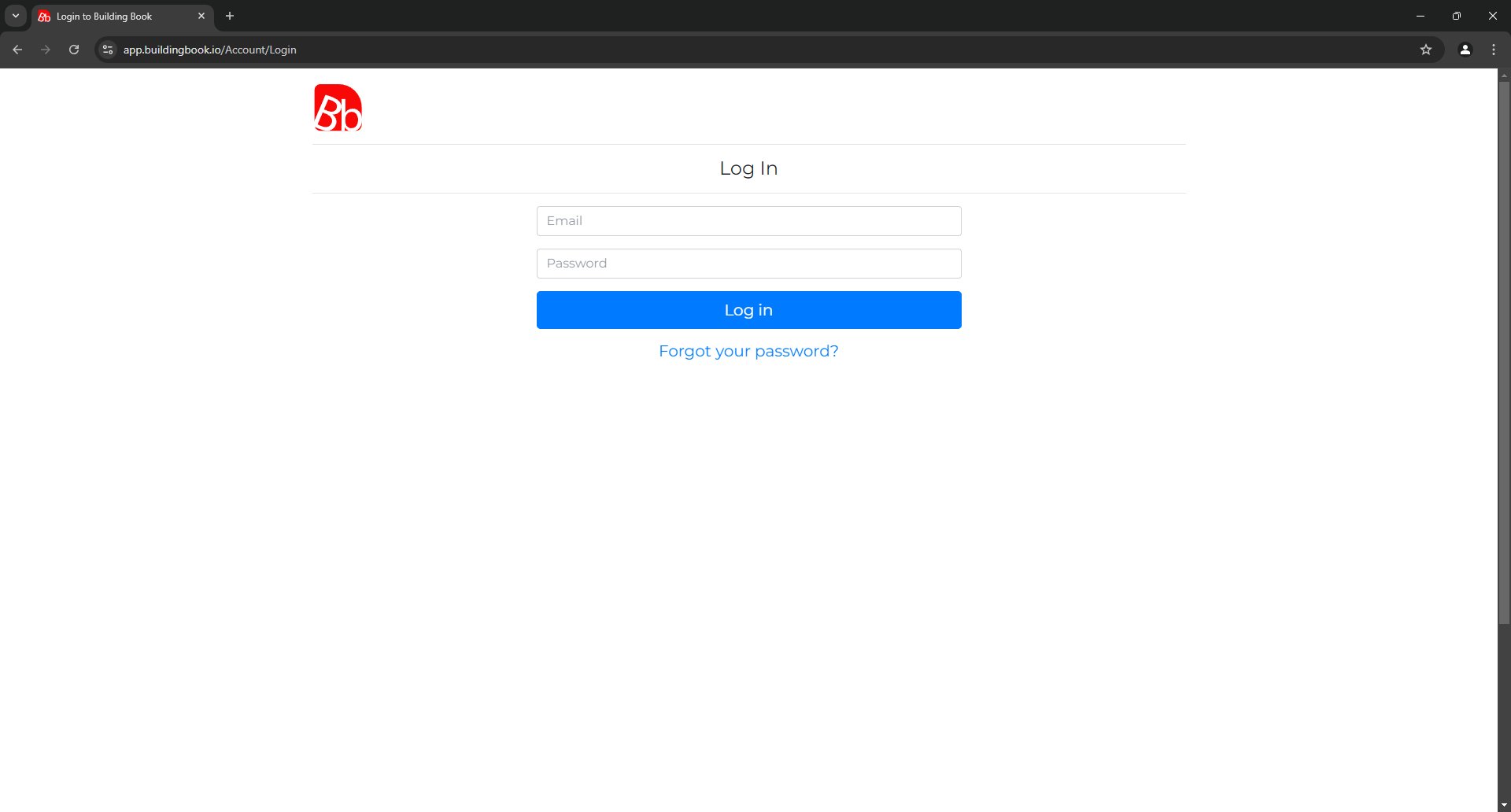
Step 1: Log in to Building Book with your Operative Account
Log in to the Building Book app using your operative account credentials.
Step 2: Install the PWA
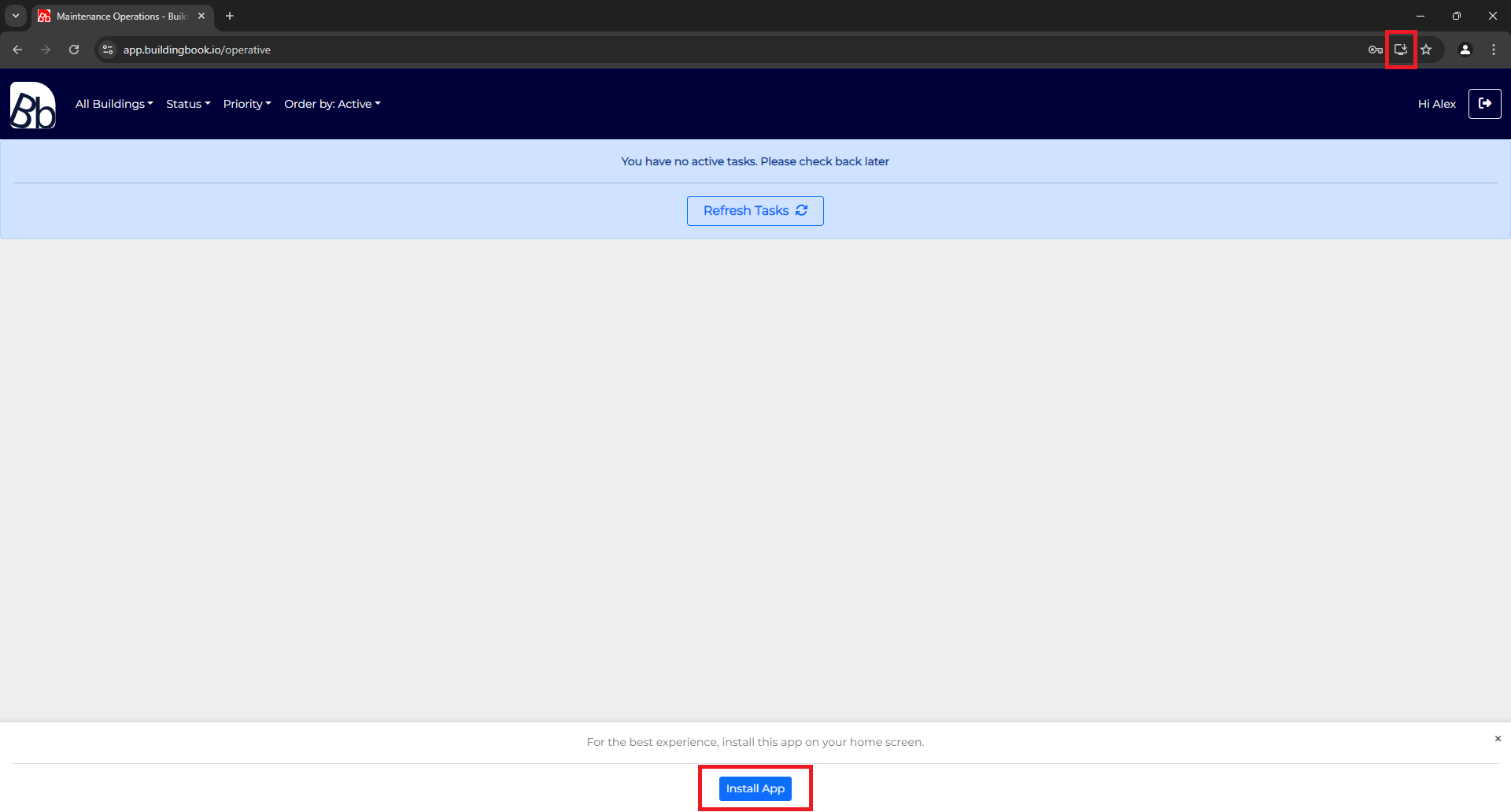
Look for the Install icon in your browser's address bar. This is usually a small computer icon with a plus sign (+).
- In Chrome, it's located to the right of the URL bar.
- In Edge, it’s similarly located in the address bar.
Alternatively, you can click the 'Install App' button located at the bottom of the screen.
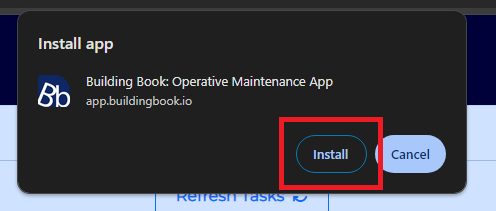
Step 3: Confirm Installation
Click on the Install button that appears after clicking the icon. This will install the PWA on your desktop.
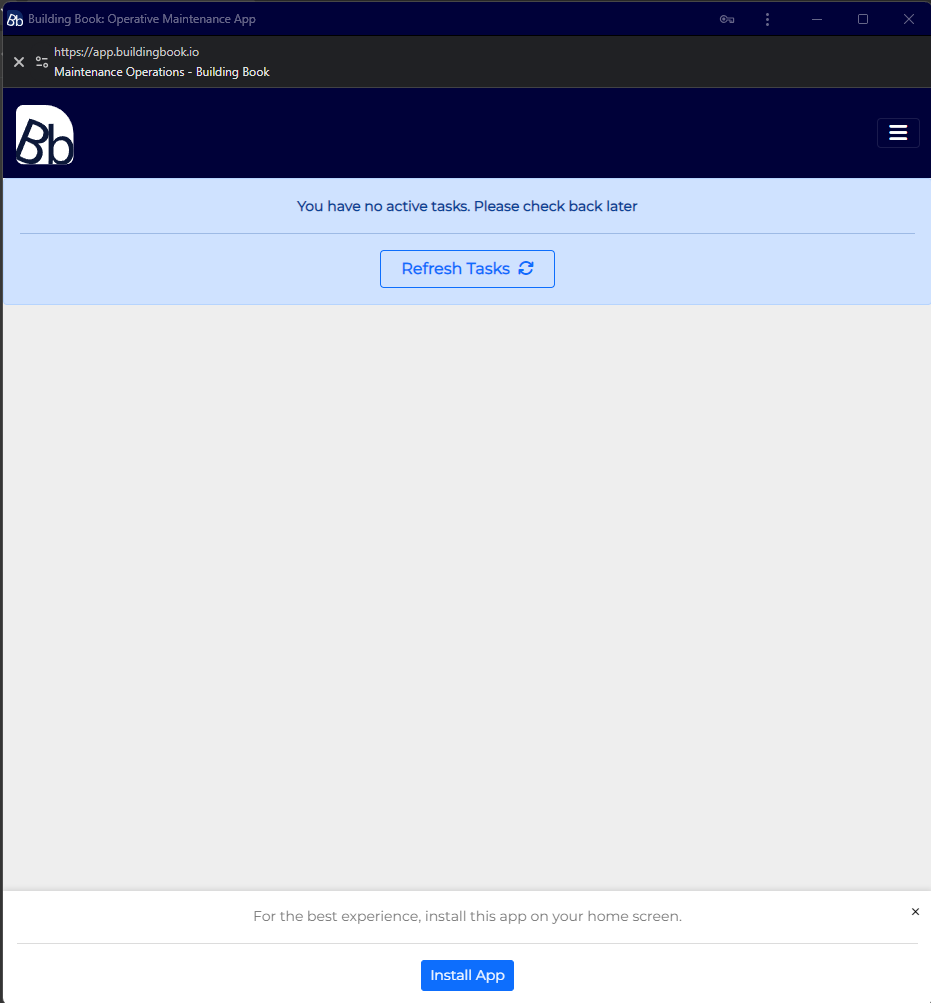
Step 4: Launch the App from Your Desktop
Once installed, the Operative App will appear in your taskbar or on your desktop (depending on your operating system). You can launch it just like a native app.

Troubleshooting
-
No Install Option Available?
- Ensure you're using a supported browser like Chrome or Edge.
- Make sure you're on the correct URL, and the page has fully loaded.
- Some browsers might require you to visit the site a few times before showing the PWA installation prompt.
-
Uninstalling the PWA
- If you want to remove the PWA, you can right-click the app icon from your desktop or applications folder and choose Uninstall.