Risk Assessments
Risk Assessments are managed at an organisational level, meaning any assessments you configure here will be accessible organisation-wide.
Accessing the Risk Assessments Menu
To access the Risk Assessments management page, navigate to the Settings Menu. Select Risk Assessments from the options, then click Manage Risk Assessments from the submenu to view or configure your organisation's assessments.
Adding a Risk Assessment
To add a new risk assessment:
- Go to the Manage Risk Assessments menu.
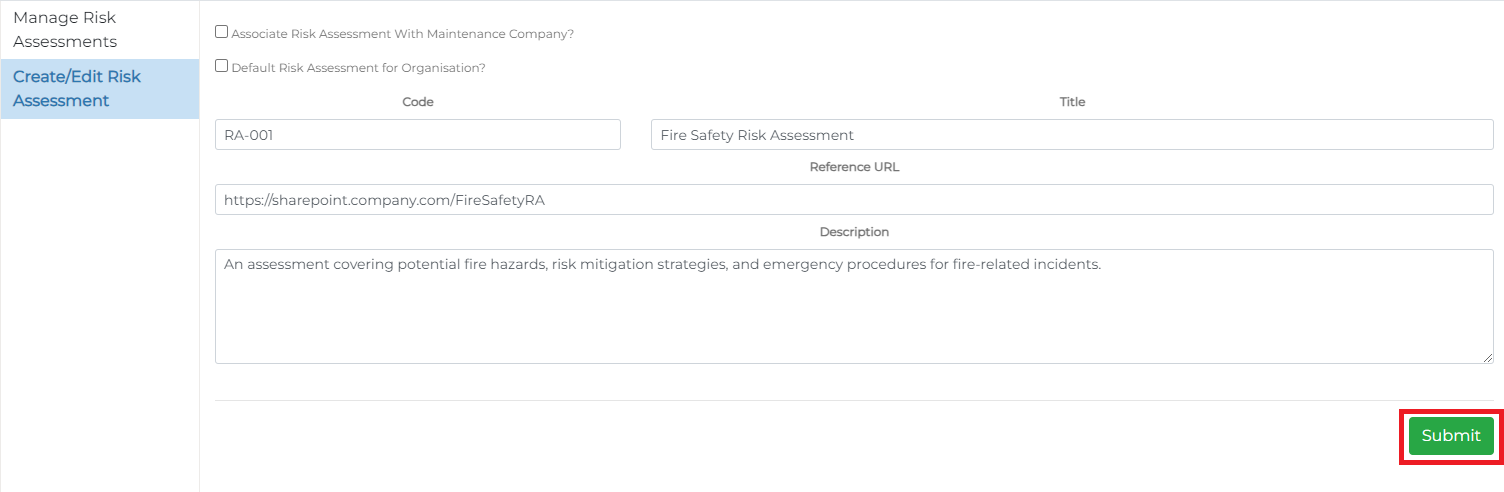
- Click the Add Risk Assessment button in the bottom right corner, or select Create/Edit Risk Assessment.
This opens the Risk Assessment form.

Complete the form as follows:
- Code: A unique identifier for the risk assessment.
- Title: The name or reference of the assessment.
- Reference URL: An optional URL link to the assessment. It is recommended that all assessments are stored on a secure organisational cloud platform, such as SharePoint, so operatives and contractors can access the most current documents via their organisation accounts. This ensures document security and proper management by authorised personnel.
- Description: A detailed description of the assessment.
Setting a 'Default' Risk Assessment for Your Organisation
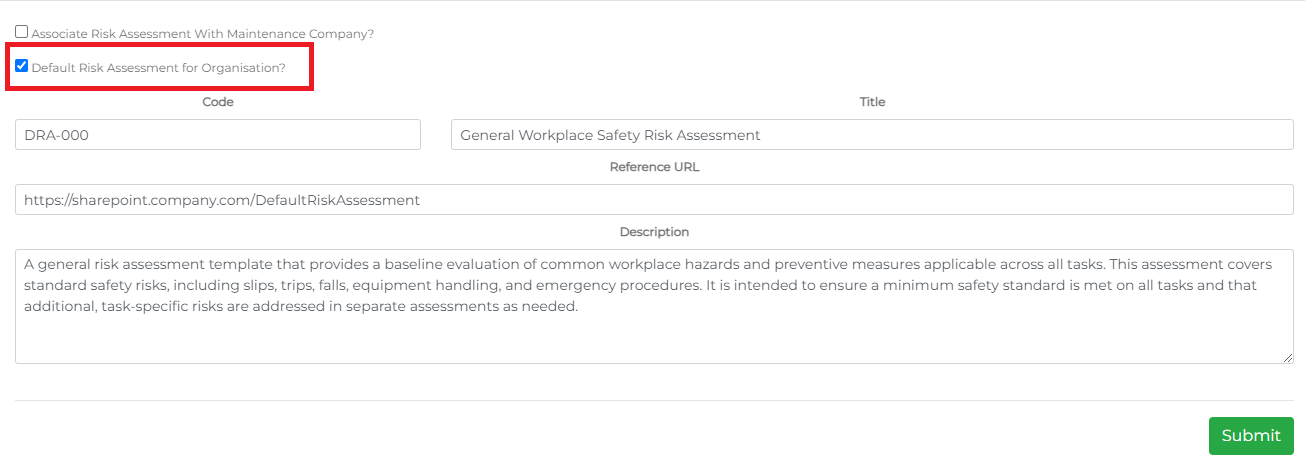
To set a risk assessment as the default:
- In the add/edit form, select the Default Assessment for Organisation checkbox.
This will make the selected assessment the default for all new tasks created by the system while this option is active. Note that only one default risk assessment can be set at a time.
Associating a Risk Assessment with a Maintenance Company (Service Provider)
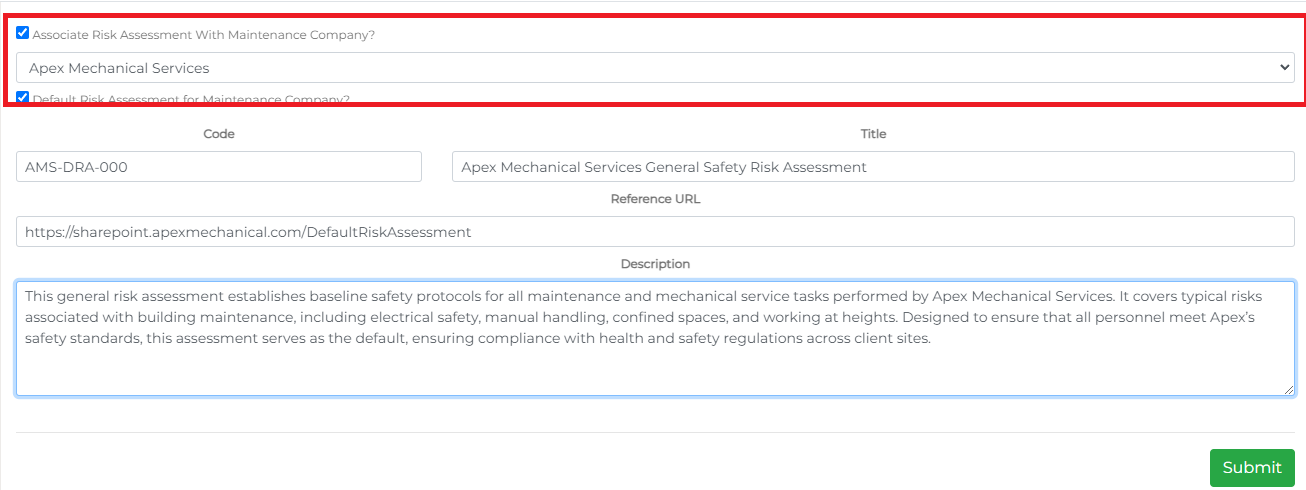
If your organisation has Service Providers, you can set specific assessments for each. To associate an assessment with a service provider:
- Select the Associate Assessment with Maintenance Company checkbox.
- Choose the relevant service provider from the dropdown list that appears.
Administrators will then have access to these specific assessments when creating tasks for these providers. You can also set one of these as the default assessment for the service provider, which will automatically link it to their tasks.

Editing a Risk Assessment
To edit an existing risk assessment:
- From the Manage Risk Assessments menu, click the icon to open options:
- Edit Details – Opens the Risk Assessment form for updates.
- View Document – Opens the assessment's URL link in a new window.
- Remove – Permanently deletes the assessment.
