Adding Operatives
To access the Operatives menu, click the icon at the top right of the screen, then select Operatives.
From the Operatives view, you can toggle between the Internal and External operative menus to manage different types of operatives.

Adding an Internal Operative
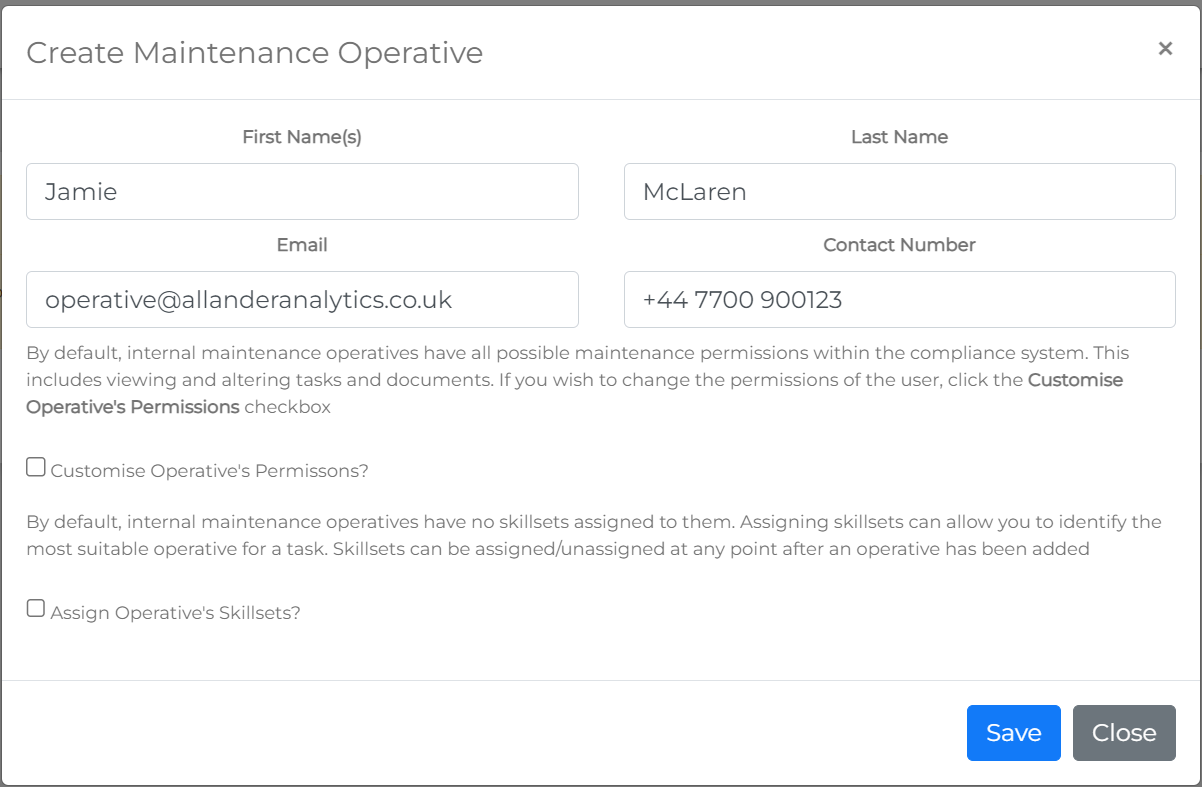
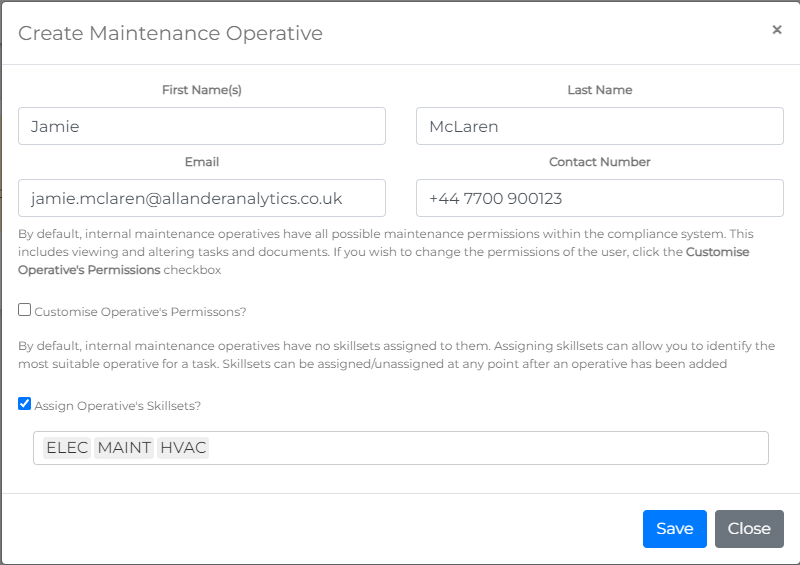
To add a new operative, click the Create Operative button at the bottom right of the view. This will open the Create Maintenance Operative form.

An operative requires the following details:
- First Name
- Last Name
- Email Address: Important—this is the email address that the account will be created for and should be a work email address, not a personal one.
- Phone Number: Ideally, this should be the operative's work phone number.
Configuring Operative Permissions
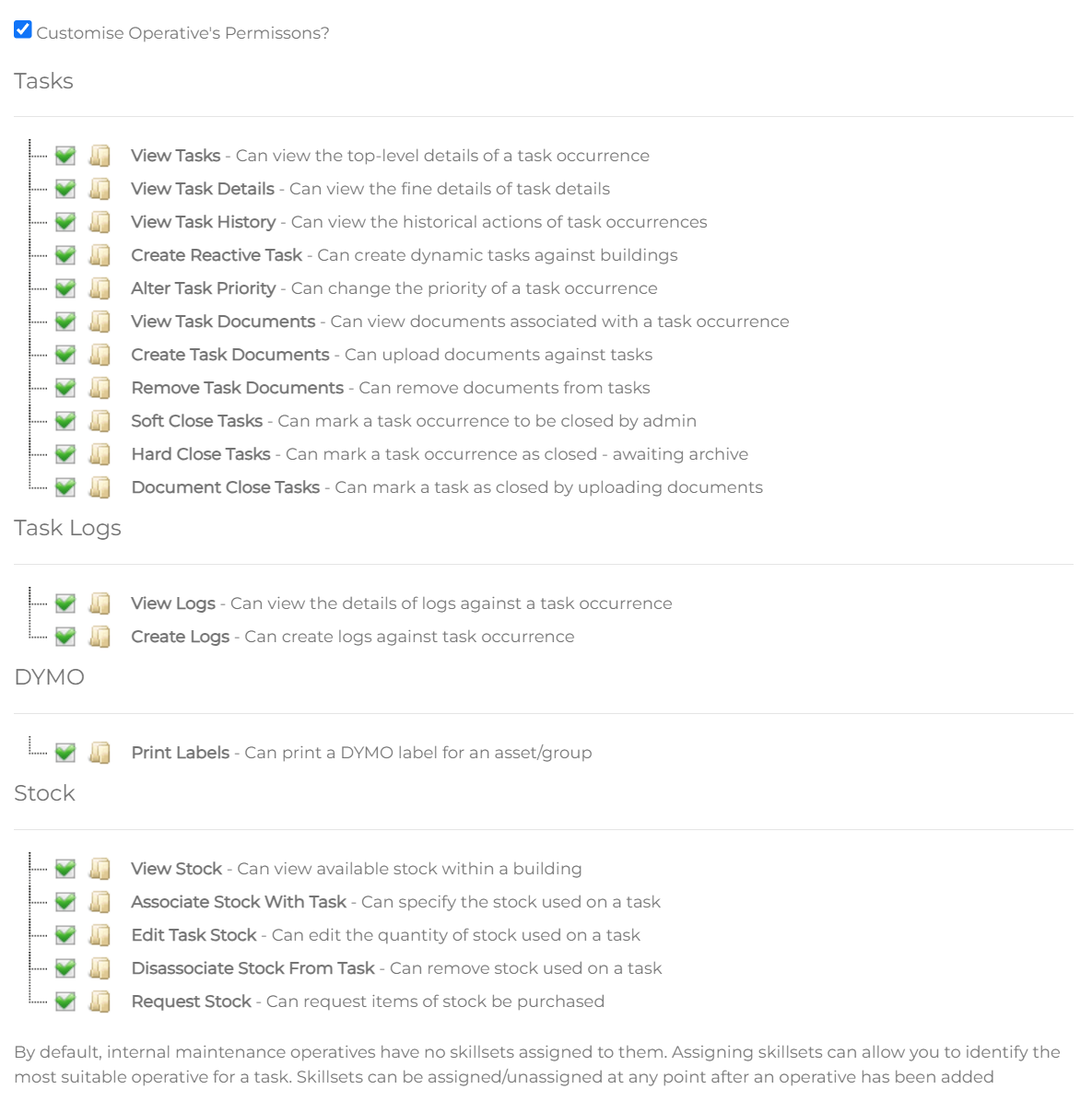
If you would like to customise the operative’s access to Building Book, check the Customise Operative's Permissions checkbox to open the permissions menu.
If permissions are not customised at this stage, the operative will be granted full access by default. Permissions can be updated at any time as needed.
For more information on the permissions available, refer to Operative Permissions.
Configuring Operative Skillsets
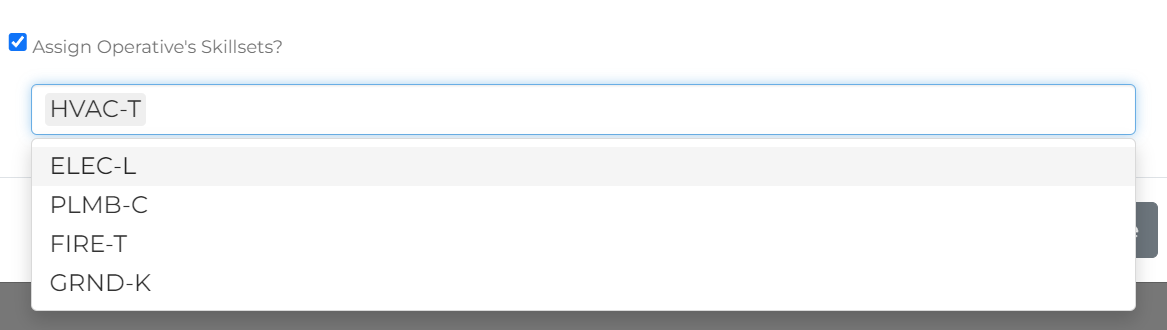
To assign Skillsets to an operative, check the Assign Operative's Skillsets checkbox. This will allow you to assign any skillsets configured in your Skillsets Configuration.
Although operatives can be configured without specific skillsets, it is strongly recommended to set these up. Skillsets influence which operatives are available by default for specific tasks and impact resource availability and contract charge rates.
Saving the Operative
When you’re satisfied with the operative’s configuration, click the Save button to save their profile.
Adding an External Operative
External operatives are added and managed from the External tab in the Operative management view. From the External tab, click the Create Operative button to add a new external operative.

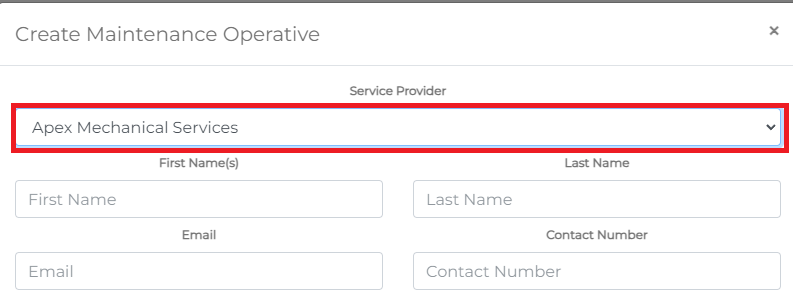
Adding an external operative follows the same process as adding an internal operative. However, the form now includes a Service Provider select field.
You can select any maintenance company that has been configured in your Service Provider Configuration.
Creating an external operative will link the operative to the selected service provider and enable them to be assigned tasks within that provider’s maintenance schedule.