Operative Building Access
Before an operative can be assigned to a maintenance task in any of your organisation’s buildings, they must first be granted access to the relevant building(s) from the Buildings tab in the Operative Management View.

Assign an Operative to a Building
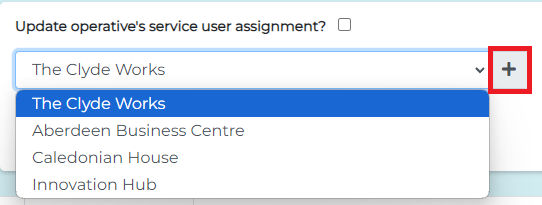
On the left side of the view, you’ll find a dropdown list of all buildings in your organisation that the operative is not currently assigned to. Click the grey box with the icon next to a building to add it to the operative’s list of accessible buildings.
After selecting the desired buildings, click the blue Save Changes button to save these assignments for the operative.
Unassign an Operative from a Building
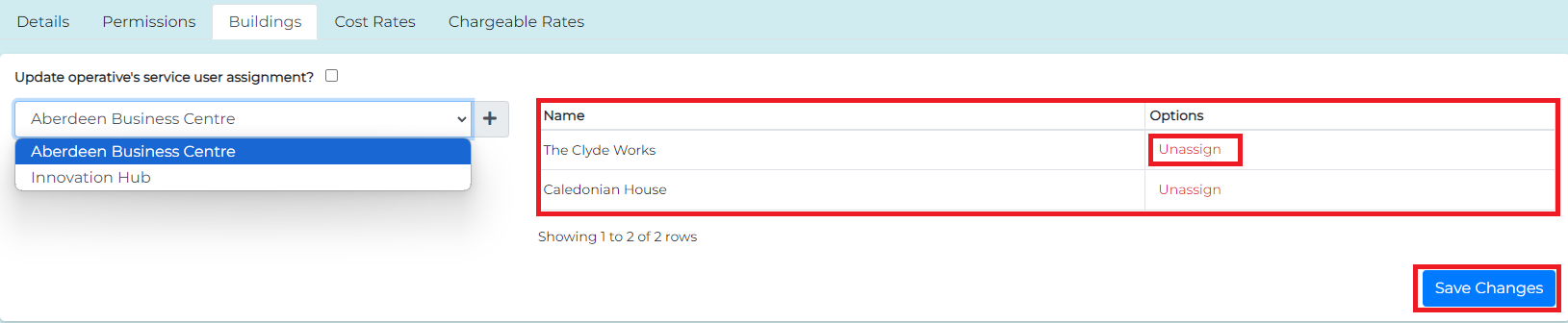
To remove an operative’s access to a building, click the Unassign link in the "Options" column of the assigned buildings table. This will prevent the operative from being assigned tasks in that building.
After making the changes, click the blue Save Changes button to confirm the updated list of buildings for the operative.
Update 'Service User' Assignment
If the operative has been designated as a Service User, you can update their building point references by checking the Update Operative's Service User Assignment checkbox. This will add all point references for any newly assigned buildings, allowing the operative to take meter readings and upload relevant data for those sites.
