Closing a Task
Depending on the policies of your organisation, it may not always be necessary to track active tasks in real time using the dynamic Start/Stop System.
In such cases, the operative can use the system's standard Close control to set their final time on the task and mark it as closed.
Operative Close Permission Level
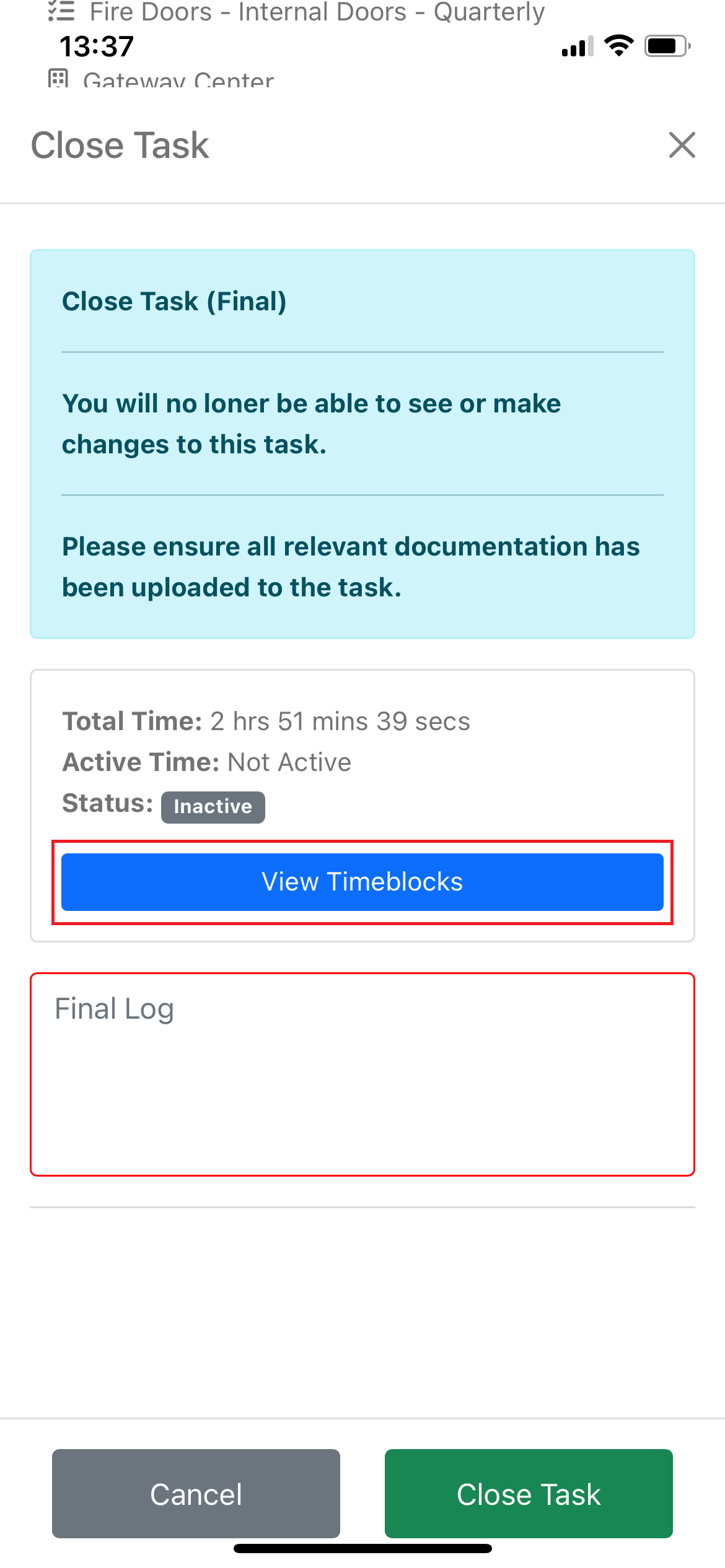
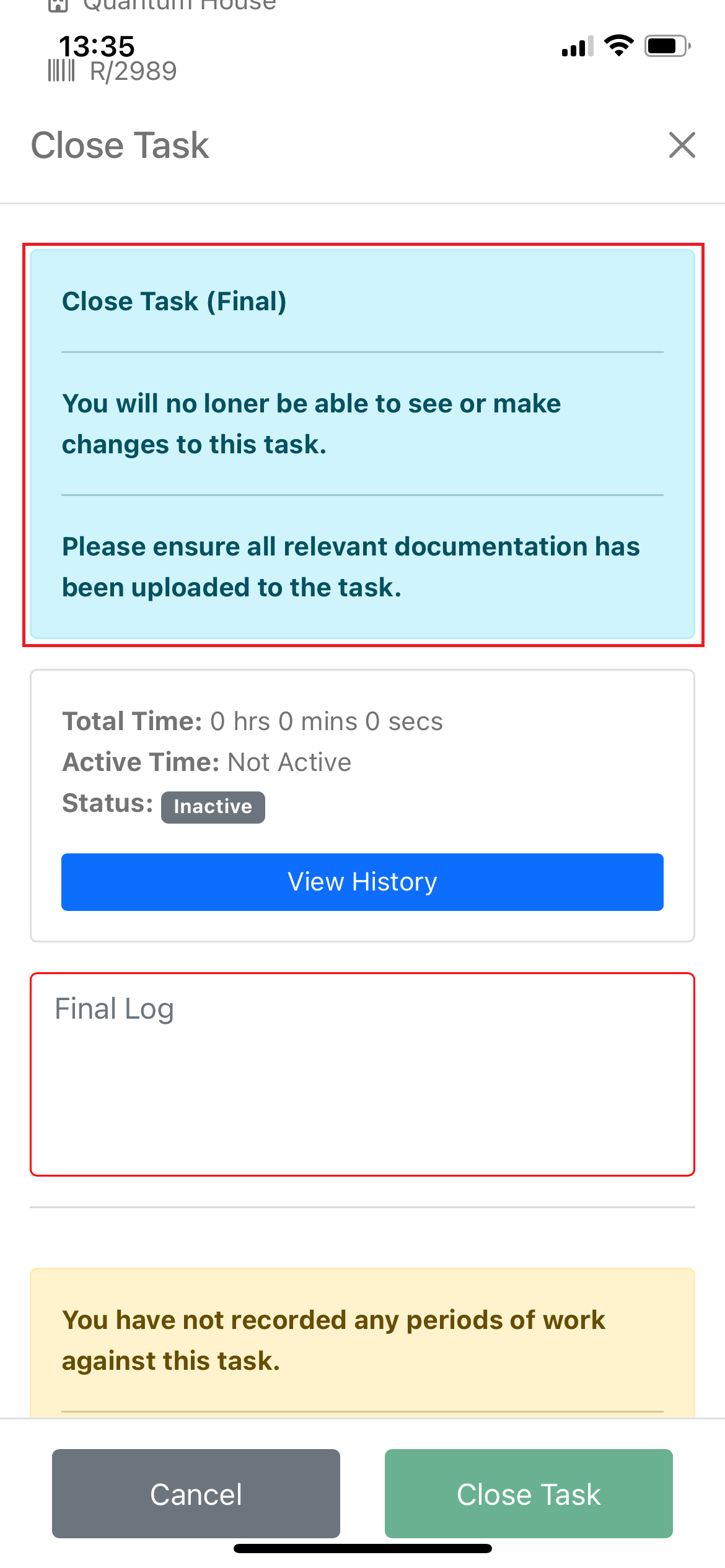
When the Close Task View is launched, a coloured information card appears at the top of the form. This card clearly explains what will happen when the task is closed. An operative with elevated 'close' permission, as shown in the image below, will no longer be able to interact with the task, as this level of permission bypasses admin review, fully finalising the task.
Typically, operatives close tasks for admin review, meaning the task will be set as closed but pending review. The operative can still interact with the task, such as adding or viewing logs and documentation. It will remain visible to the operative until it’s finalised by a system admin. If necessary, an admin may revert the task to an active or overdue state.
Closing a Task with No Timeblock(s)
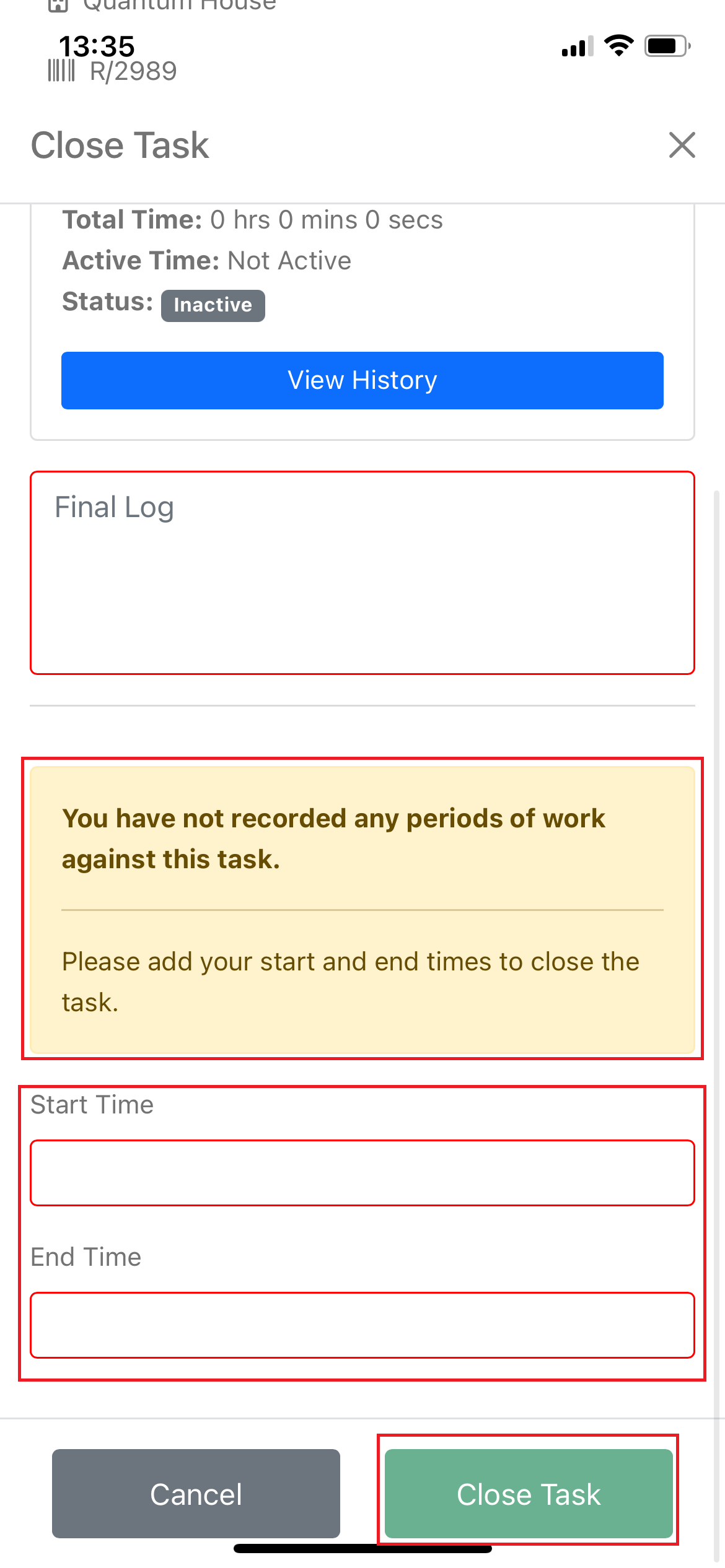
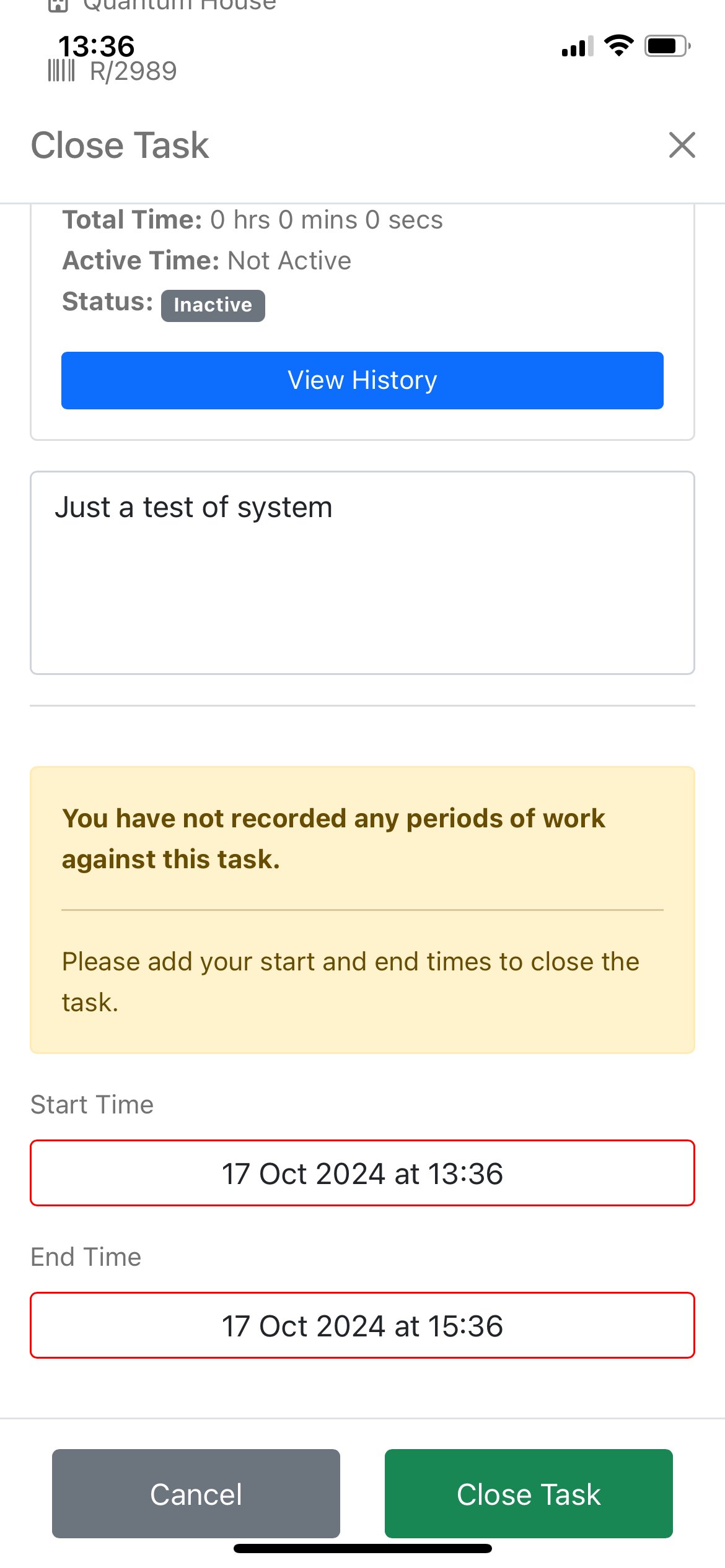
A task cannot be closed without any time recorded against it. When an operative has used the timeblock system to record periods of work on a task, they will be viewable in the close menu. However, if an operative attempts to close a task with no recorded time, they will be prompted to enter start and end times. This ensures the system can calculate their final time on task.
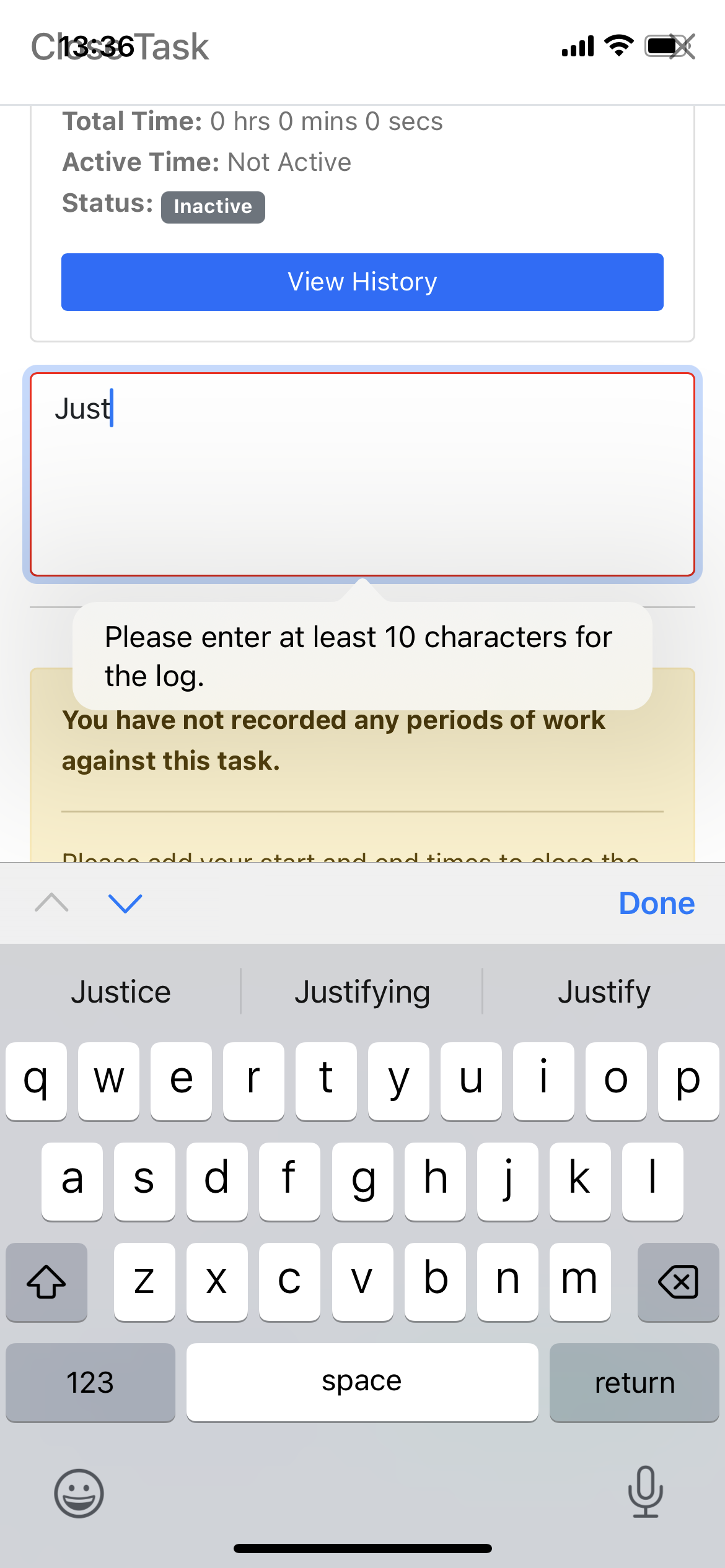
In this case, a second coloured information box will appear with the message, "You have not recorded any periods of work against this task." Below this message, start and end date/time inputs will be provided. The operative must populate these fields, along with a final log, to enable the Close Task button.
Closing a Task with Timeblock(s)
When an operative is closing a task that has recorded timeblocks, clicking the View Timeblocks button will display a list of Timeblock Cards.
Timeblock Card Structure:
- Header:
- Left: Date the timeblock was added
- Content:
- Start Time
- End Time
- Duration
- Status submitted with the timeblock
These timeblocks can no longer be altered and are available purely for reference.