Task Documents
The Task Documents menu allows users to download and upload documentation, including capturing images directly from their mobile devices.
File Restrictions
Upload Limits
Each task has the following upload limitations:
- Maximum File Size: 10 MB per file
- Maximum Number of Files: 20 files per task
Once either of these limits is reached, you will no longer be able to upload additional files to the task until you delete some existing ones.
Accepted File Types
The Operative App supports the following file types:
- Documents:
.csv,.xlsx,.xls,.pdf,.doc,.docx,.json,.ppt,.vsd,.rtf - Images:
.png,.jpeg,.jpg,.heic,.heif - Archives:
.zip
If you need to upload file types not listed above, please contact us for a review.
Viewing Existing Documents
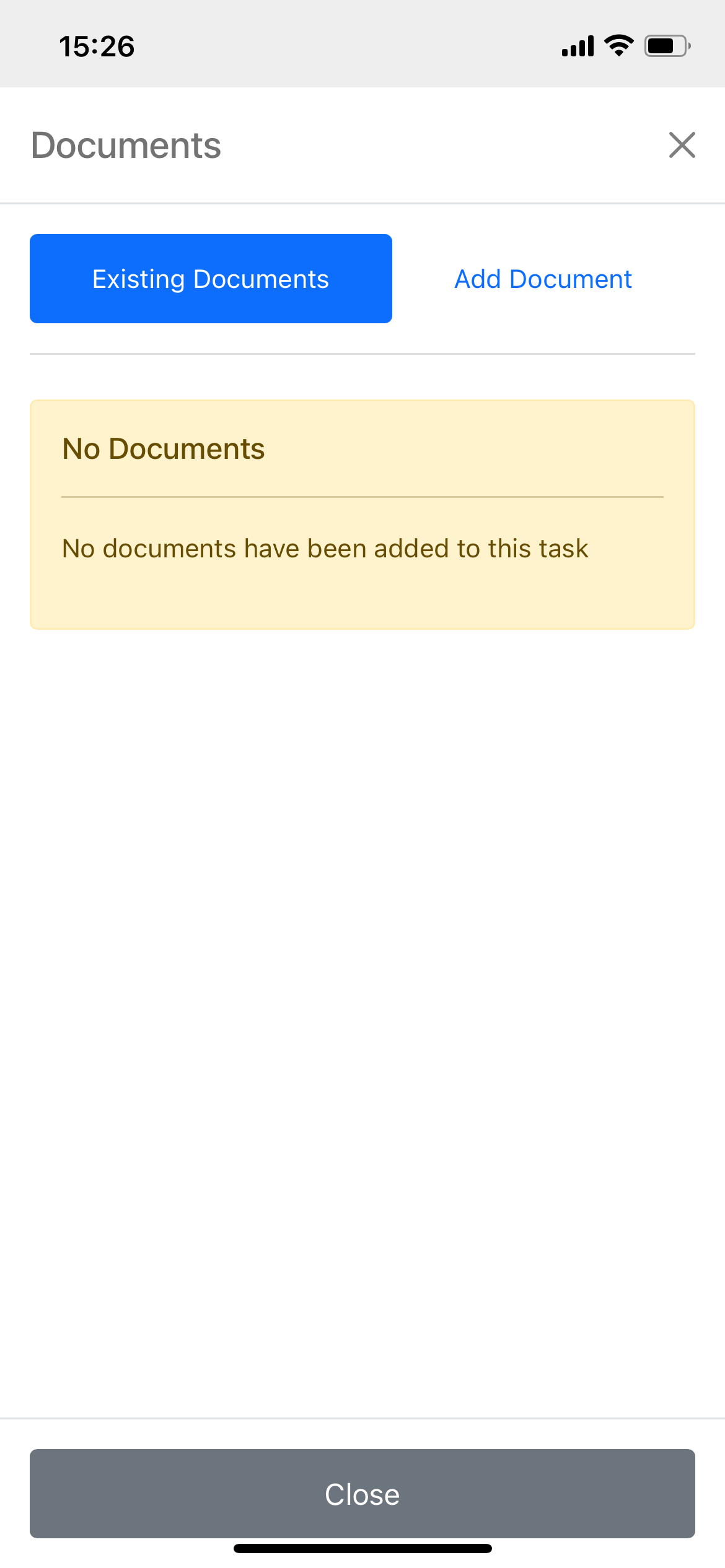
The Existing Documents tab allows users to view and download any files that have been uploaded to the task.
No Documents Message
If no documents have been uploaded to the task, a yellow alert will appear stating "No Documents".
Downloading Documents
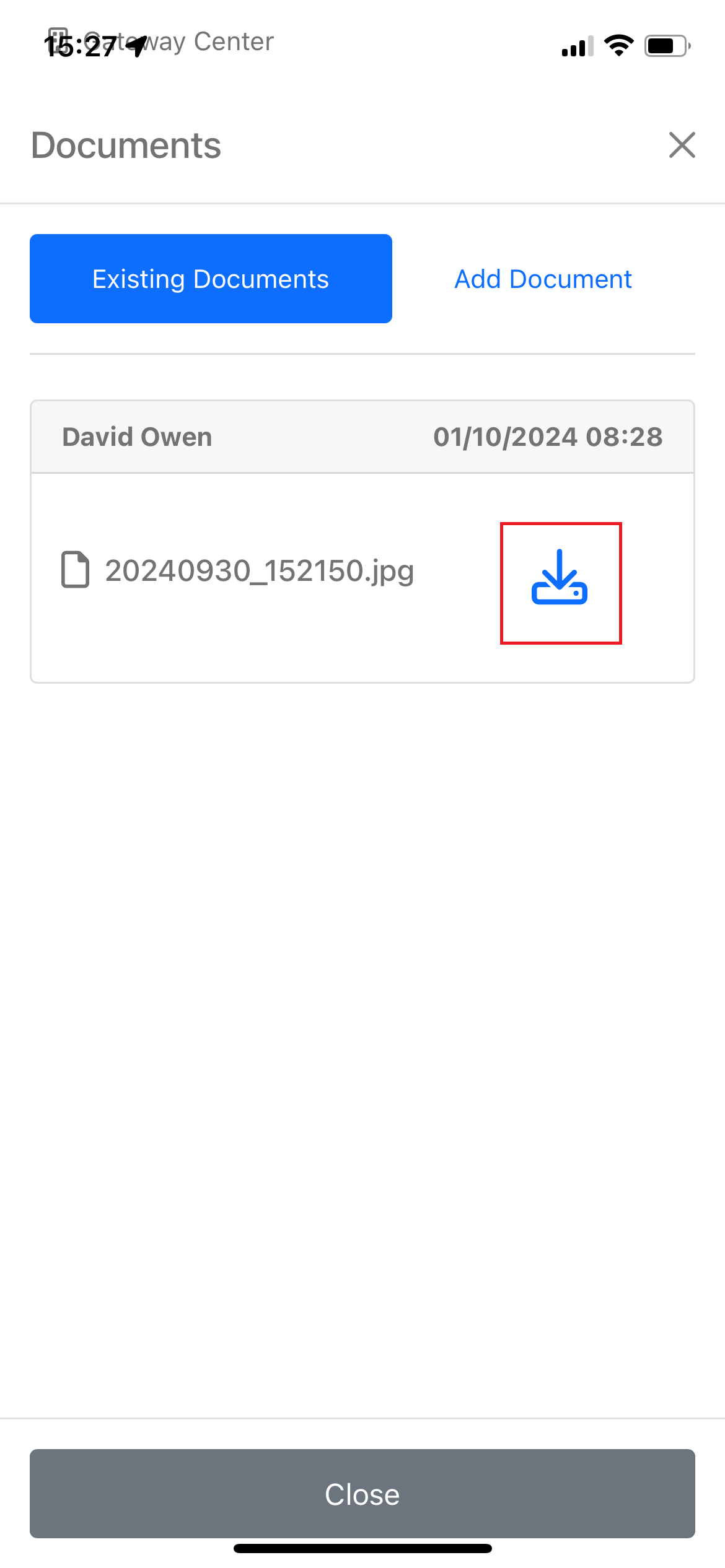
Documents are displayed as cards under the Existing Documents tab.
Card Structure:
-
Header:
- Left: Name of the user who uploaded the file
- Right: Date and time of the upload
-
Content:
- File Name
- Download Link
Uploading Documents
Uploading on Desktop
To upload documents on a desktop:
-
Drag and Drop:
- Drag files from your system's file explorer and drop them into the "Drop files here to upload" box.
-
Browse Files:
- Click on the "Drop files here to upload" box to open the file explorer and select files manually.
-
Upload Files:
- After adding files, they will appear in the upload box.
- Click the "Upload Document(s)" button to initiate the upload process.
Note: Refer to the File Restrictions section to ensure your uploads meet the size and file type requirements.
Uploading on Mobile
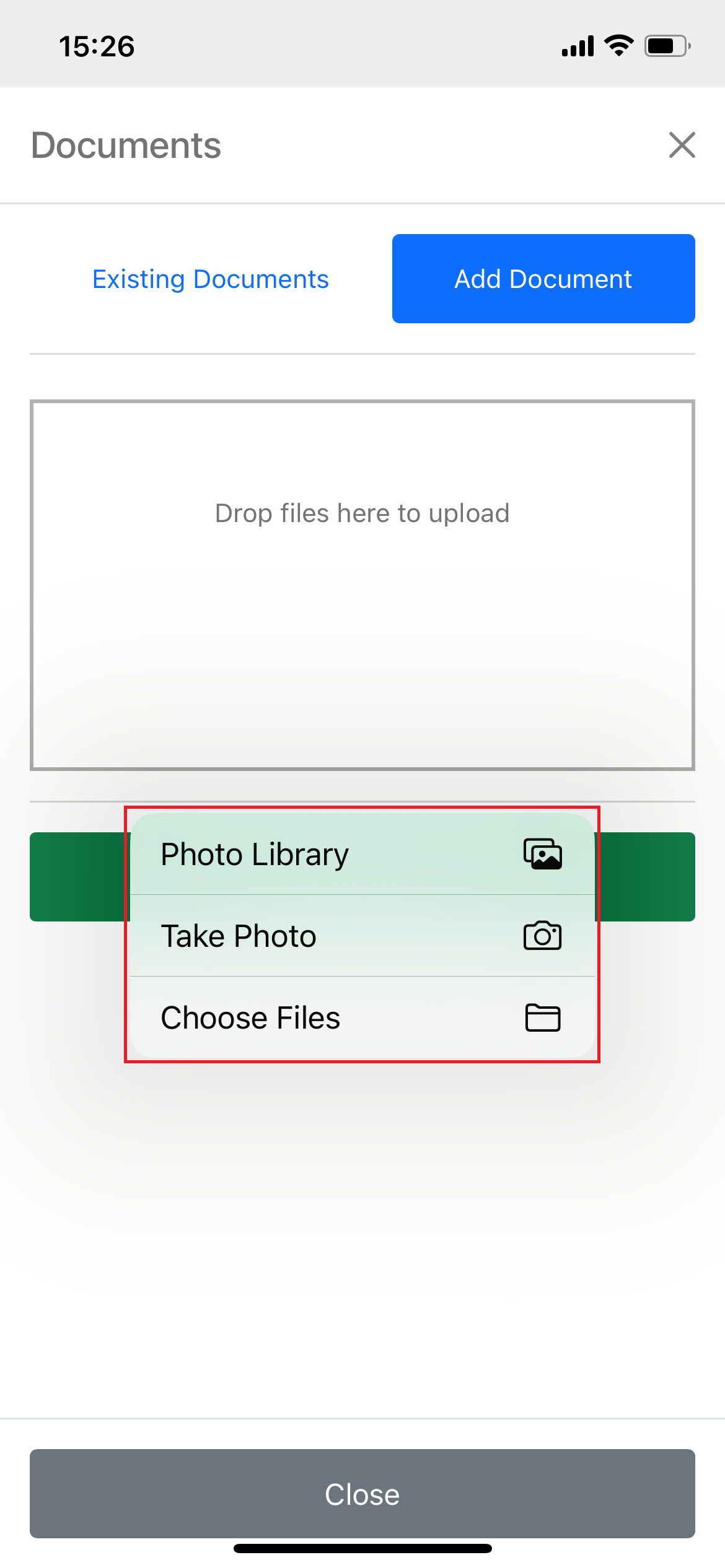
To upload documents on a mobile device:
-
Open File System:
- Tap on the "Drop files here to upload" box to open your device's file system.
-
Capture and Upload Photo:
- You can take a photo and upload it in a single action.
Important: Modern smartphones and tablets capture extremely high-resolution images by default. To avoid exceeding the file size limits with just a few images, consider lowering your device's default image settings before uploading.

Deleting Documents
Currently, the system does not allow Maintenance Operatives to delete uploaded files, including those uploaded by themselves. To have a file removed from the system, please contact an Admin user.