Task Stock
Task Stock Management
The Task Stock menu allows users to associate stock items with any maintenance task. This feature is accessible via the stock menu option within the task interface.
No Associated Stock
When no stock has been associated with a task, a yellow information box will display the message "No Associated Stock". Users can click the 'Add Stock' hyperlink in the box or navigate to the 'Associate Stock' tab to open the Associate Stock form.

Associating Stock
To associate stock with a task, follow these steps:
-
Select a Stock Item: Choose a stock item from the building stock list. This dropdown includes all stock items associated with the building, along with their current stock levels. It's the responsibility of system administrators to ensure these stock levels are kept up to date.
-
Check Availability: You can only associate stock with a task if the number of items 'in stock' is greater than 0.
Example Scenarios:
-
Sufficient Stock:
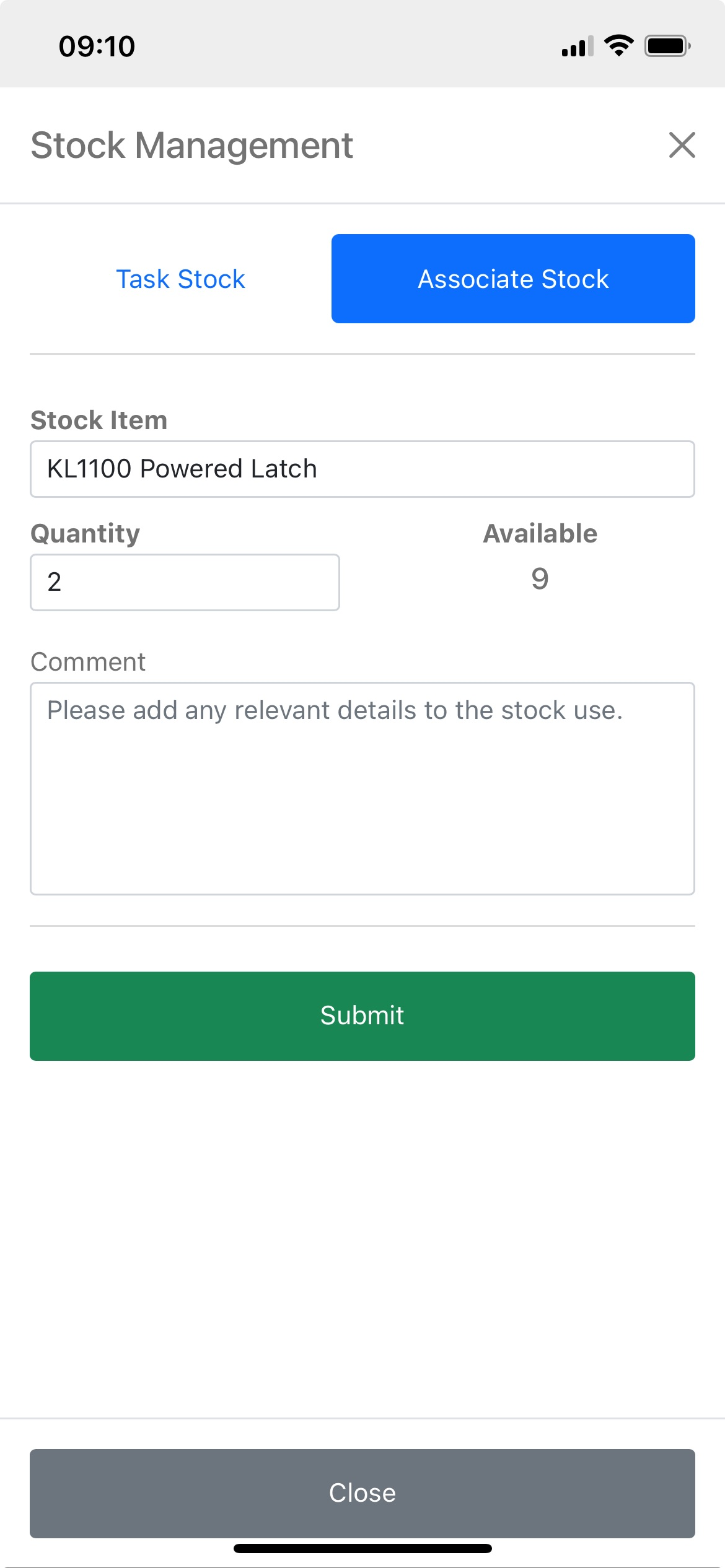
In the example below, the stock item has 9 items available. The user enters a quantity of 2. Clicking the Submit button will associate 2 items with the task, reducing the current stock level to 7.
-
Insufficient Stock:
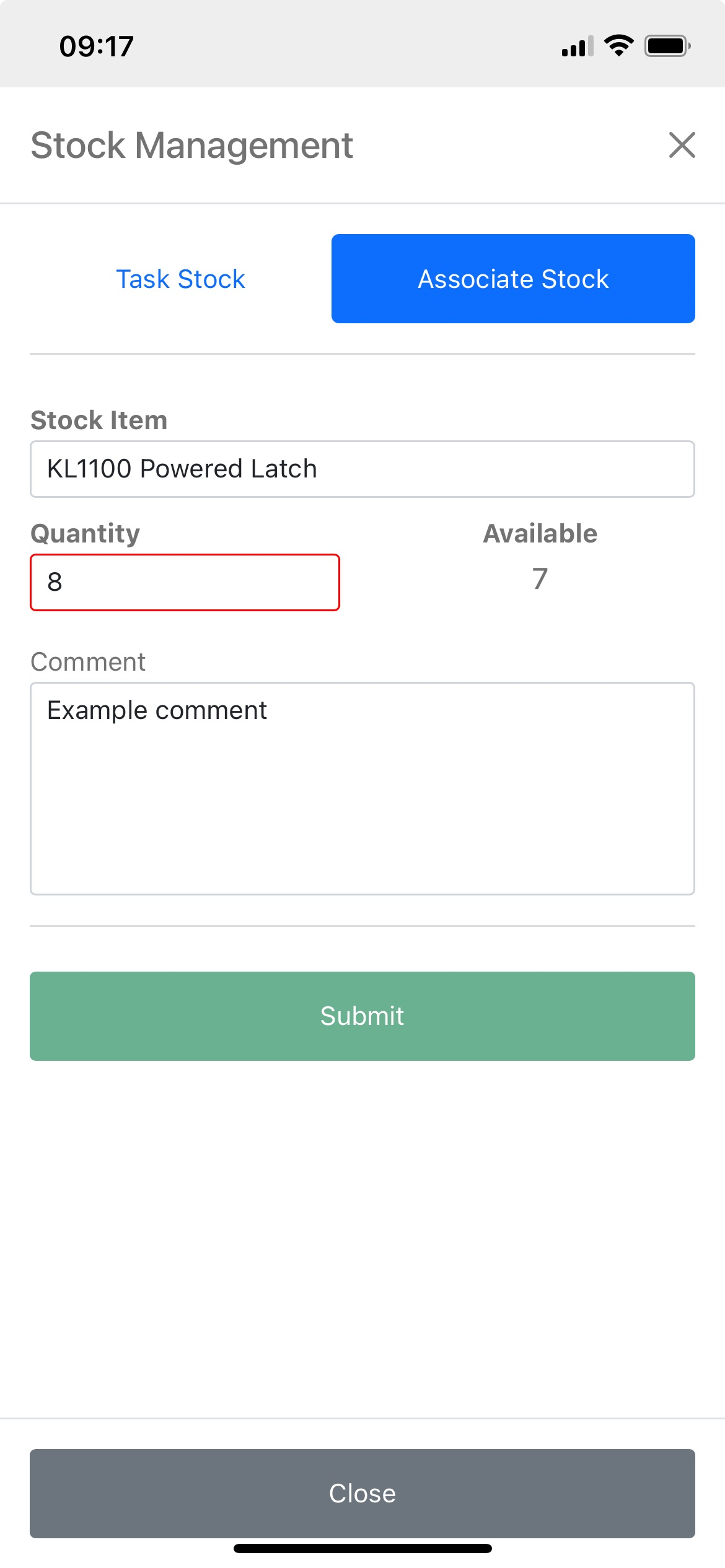
In the second example, the user attempts to associate 8 items when only 7 are available. Attempting to add more stock than available will disable the Submit button, preventing the association. If the stock levels do not reflect the true availability, please contact a system administrator to update the system accordingly.
Viewing Stock
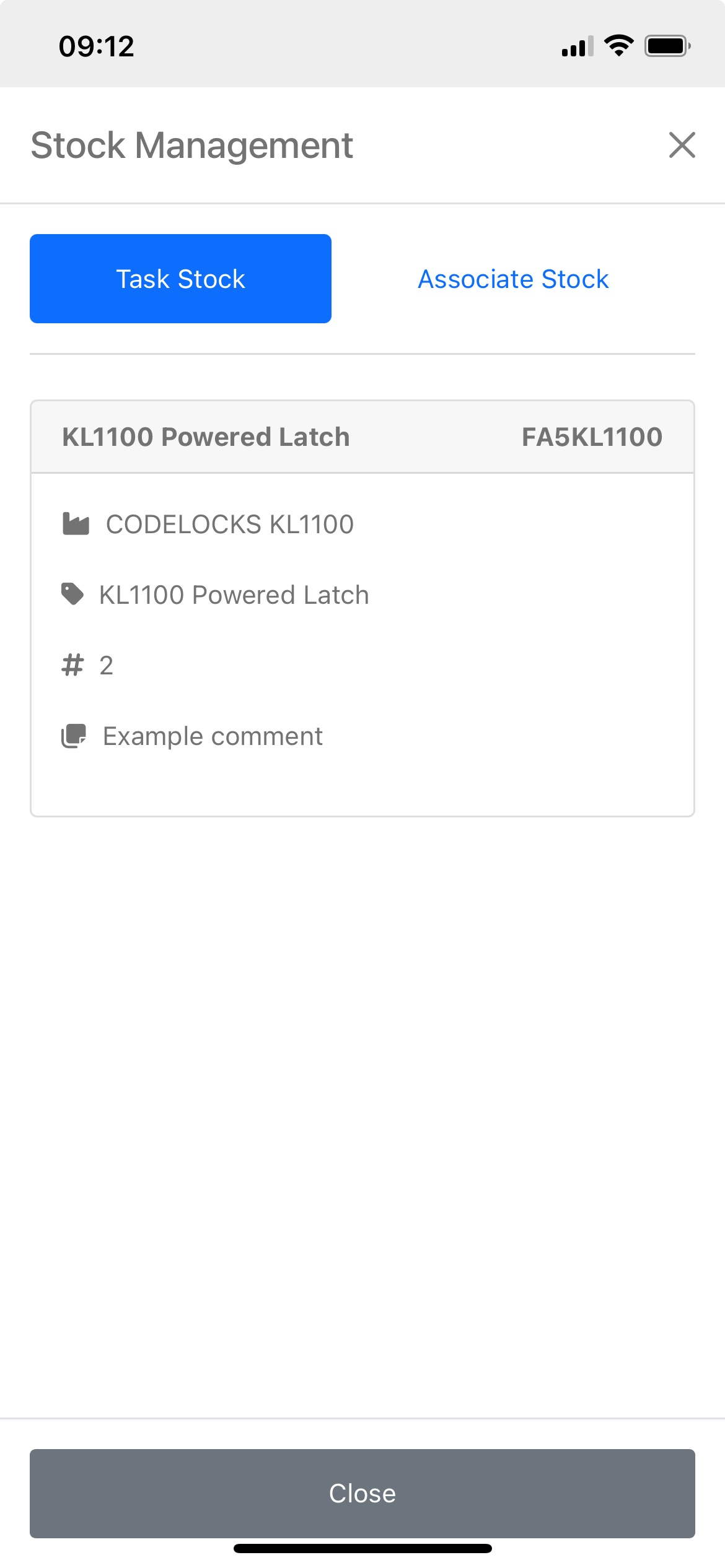
Stock items associated with a task are displayed as cards under the Task Stock tab.
Card Structure:
-
Header:
- Left: Name of the stock item associated with the task
- Right: Model of the stock item.
-
Content:
- Manufacturer of the stock item
- Name of the stock item
- Number of Stock Items associated
- Comment left by user associating the stock