Start Task
Recording Periods of Work Against a Task
Starting a Period of Work
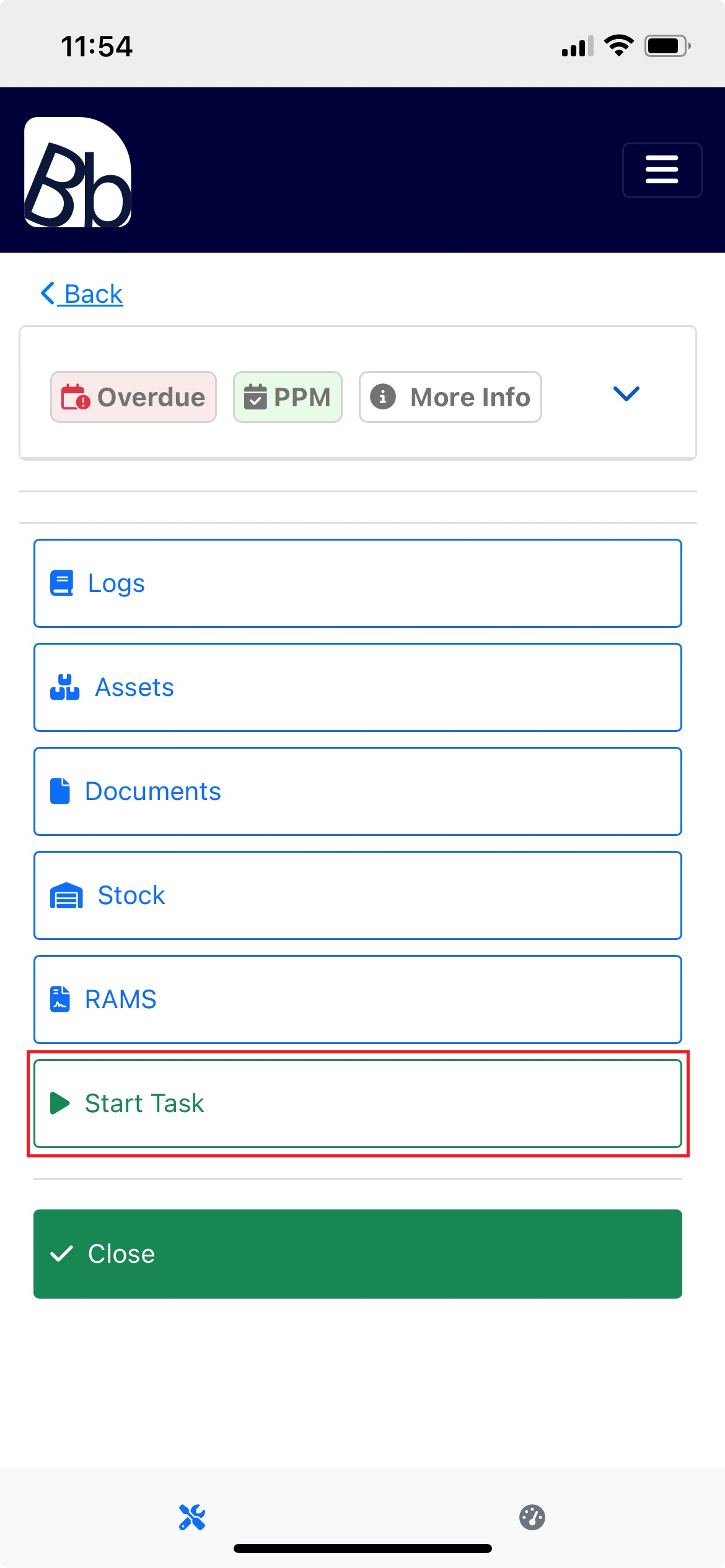
When an operative is ready to begin work on a task, they can click the Start Task button.
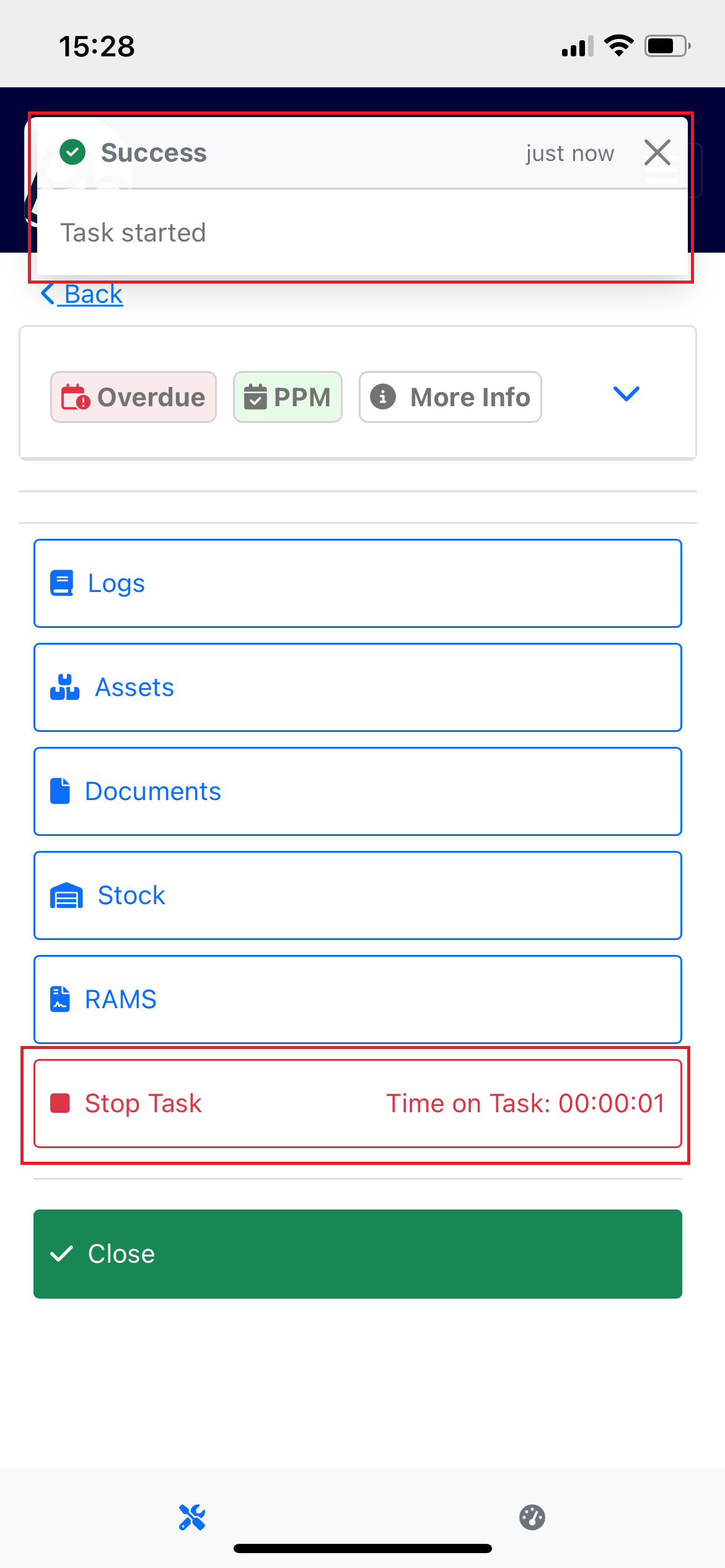
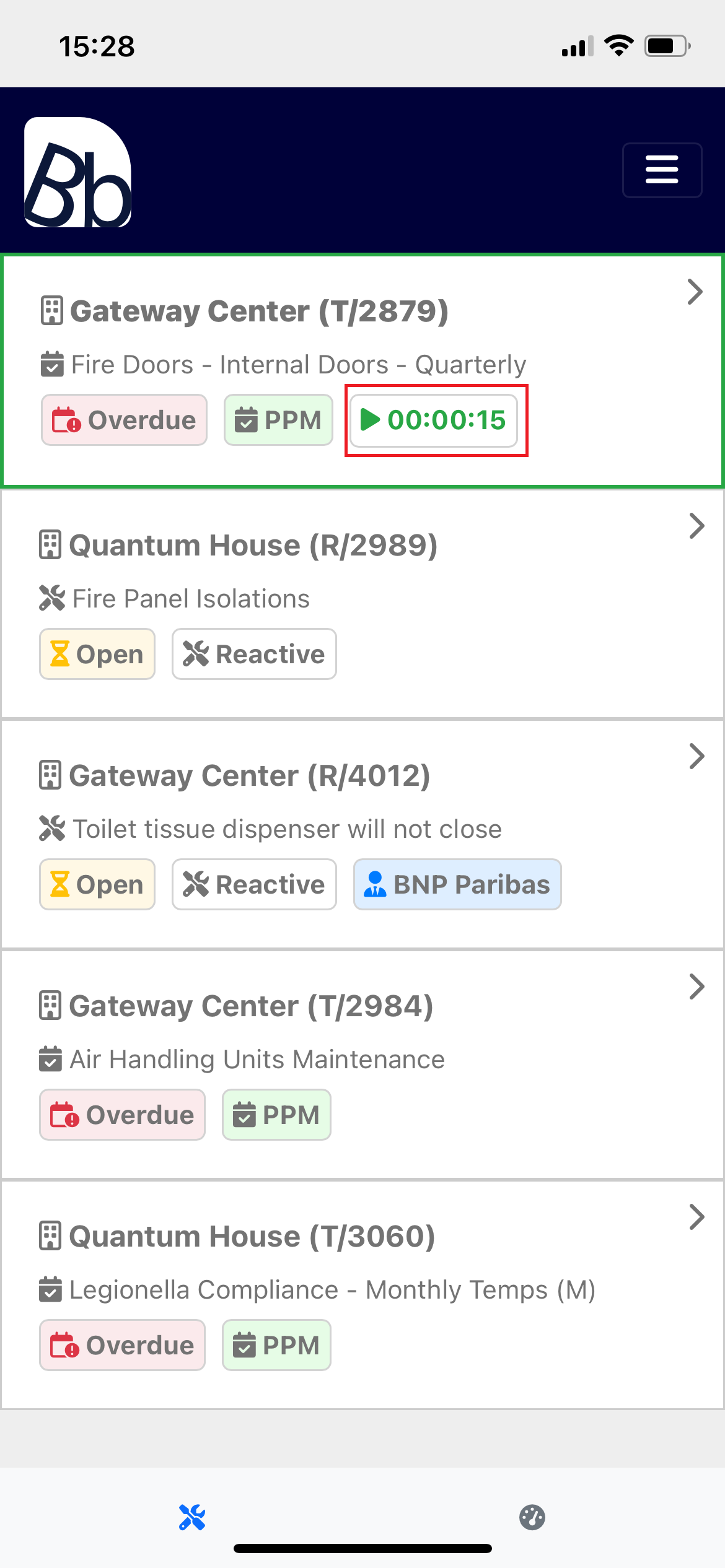
As the work on the task begins, the operative will see a successful Task Started toast message. The Start Task button will be replaced with a Stop Task button along with an active timer.
This task is now marked as Active for the operative. This information is visible system-wide, allowing system admins to view which operatives are active on which tasks.
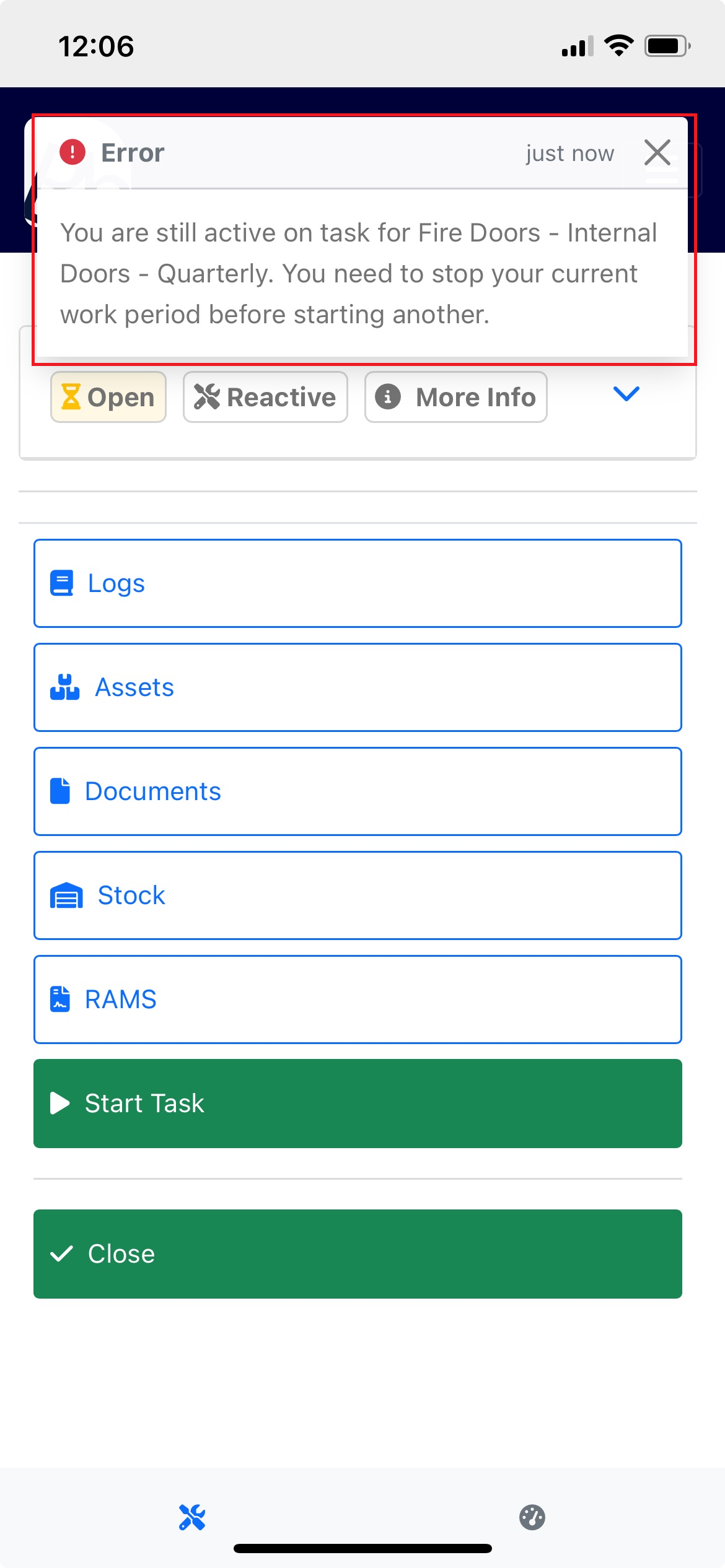
While an operative is active on one task, they cannot start another. If they attempt to do so, an unsuccessful Error toast will appear, detailing the active task that must be stopped before proceeding with a new one.
During a Period of Work
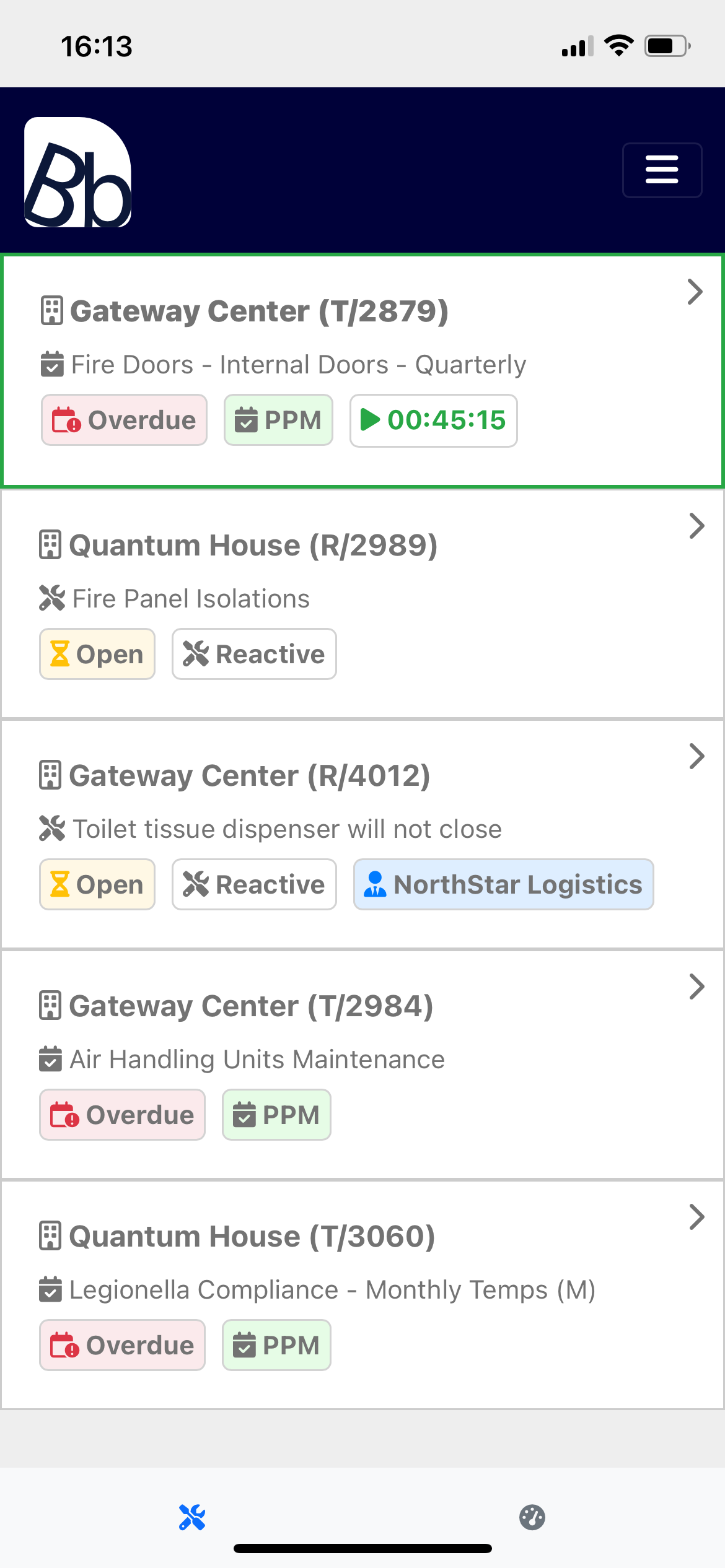
When an operative has started a Timeblock (a period of work), they can close the App. The task's active time is tracked by the system. When the operative next opens the App, the default ordering of the dashboard will display the active task card at the top of the list, along with the operative's current Active Task Time Badge.
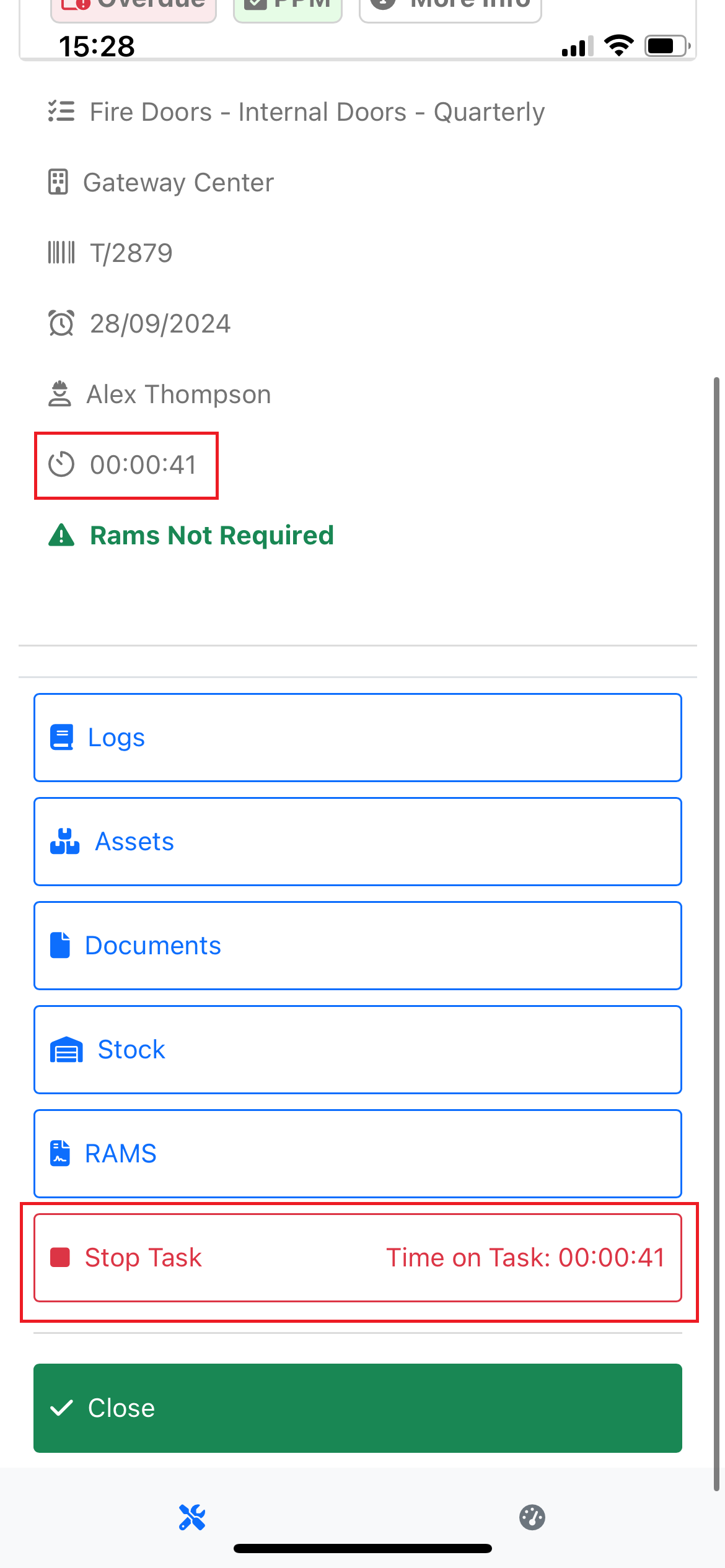
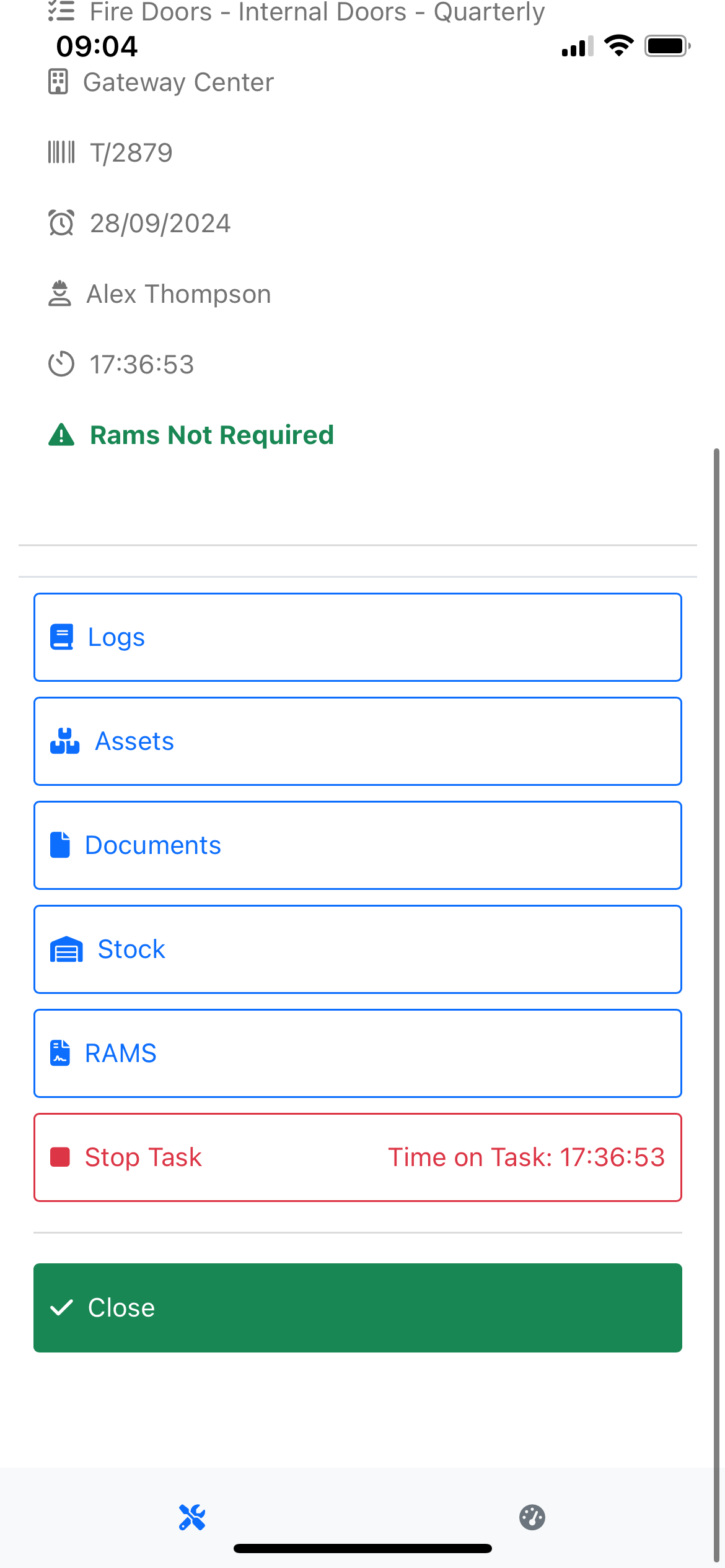
Clicking into the task will display the live time of the current work period next to the stop button. A second live timer is displayed in the Task Details card, showing the Total Time spent on the task. For example, if the operative has already recorded one hour against the task and is currently two hours into an active work period, the stop button will display 2 hours, and the Total Time in the Task Details card will display 3 hours.
Stopping a Period of Work
When an operative completes a period of work, they should open the Task card and click the Stop Task button. This will stop the current work period and record the current time against the task.
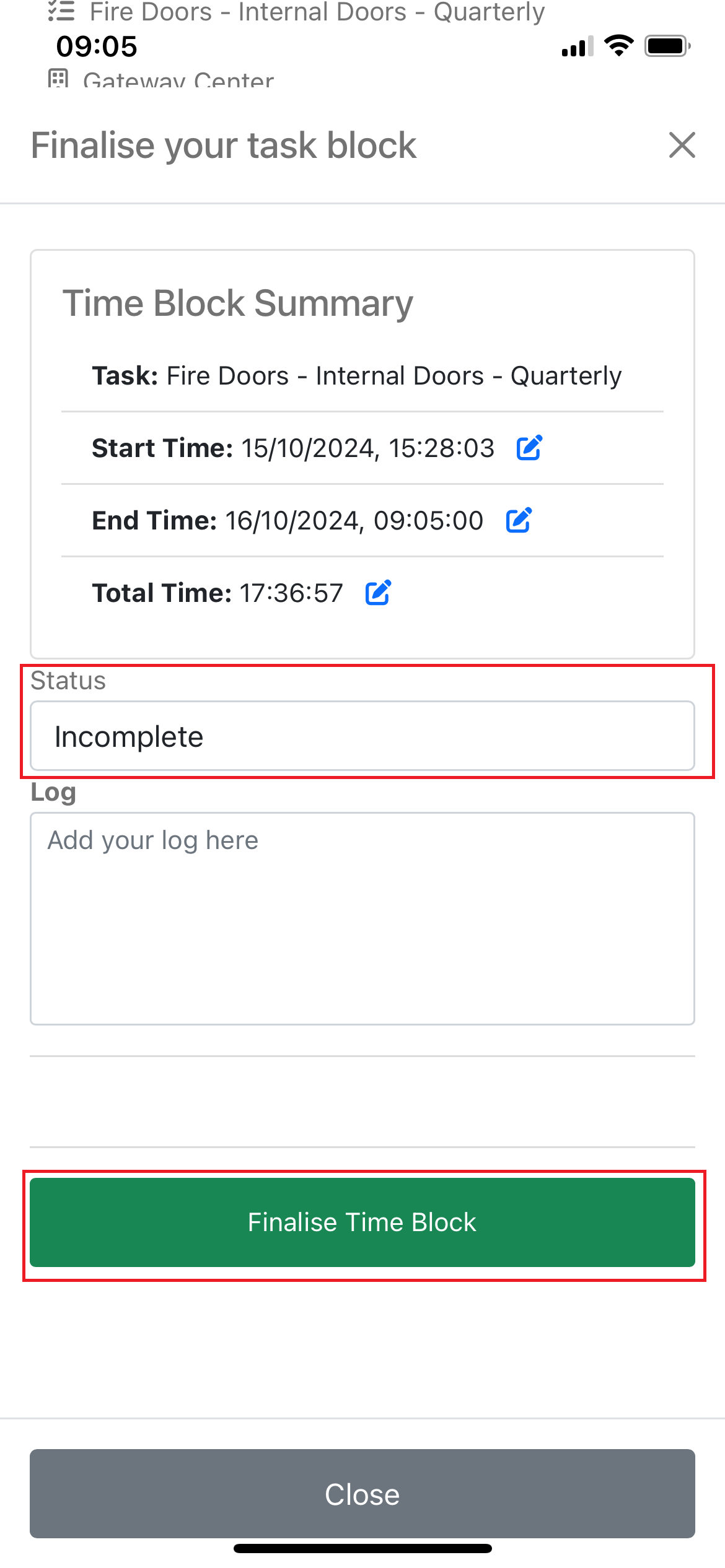
Upon clicking the Stop Task button, the operative will be presented with a finalization form where they can review the details of their closed Timeblock. At this point, the operative is expected to update the Task Status to Incomplete or Closed.
Setting the status to Closed upon submitting the Timeblock will close the task. Depending on the operative's assigned Close Permissions, the task will either be completely closed or marked as pending review by an admin. At this stage, the operative has completed the task.
Amending a Period of Work
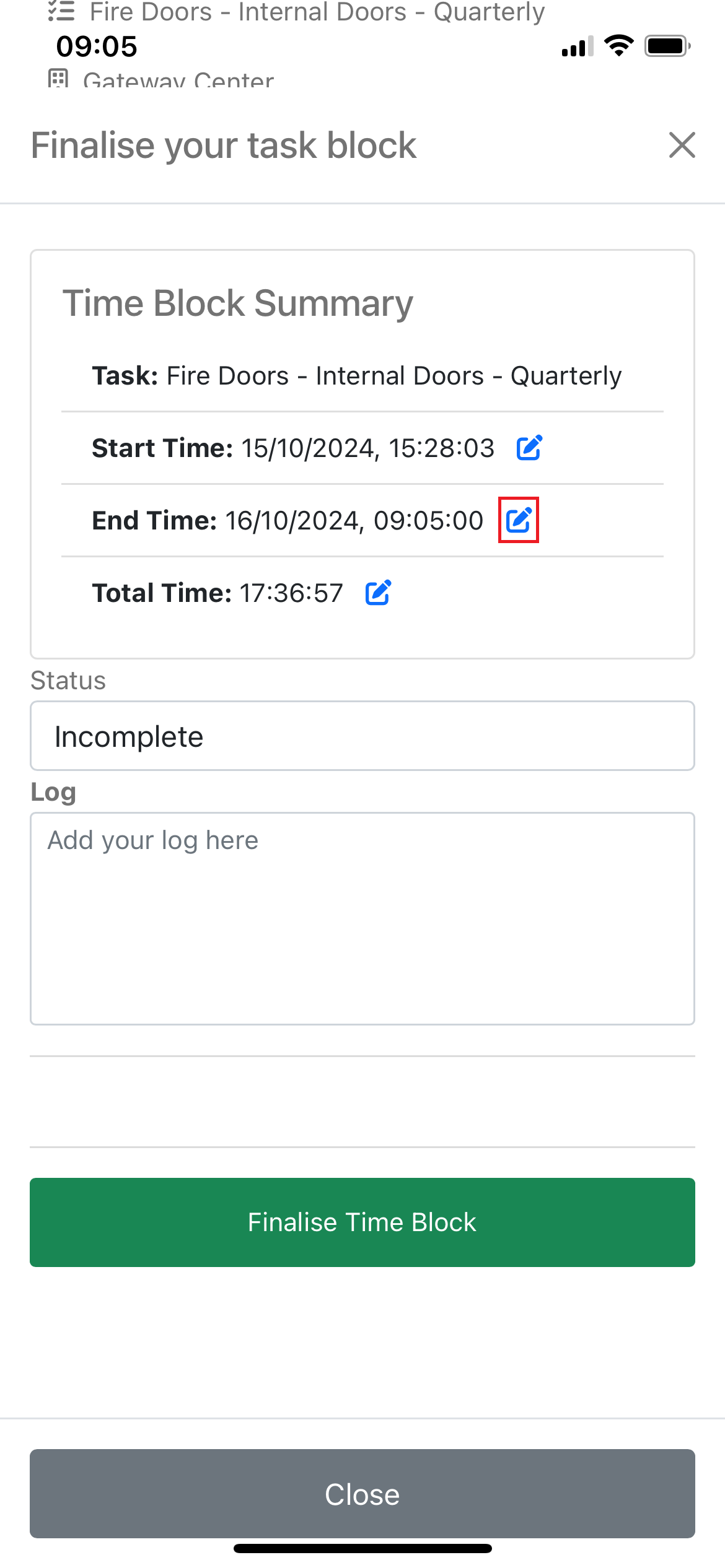
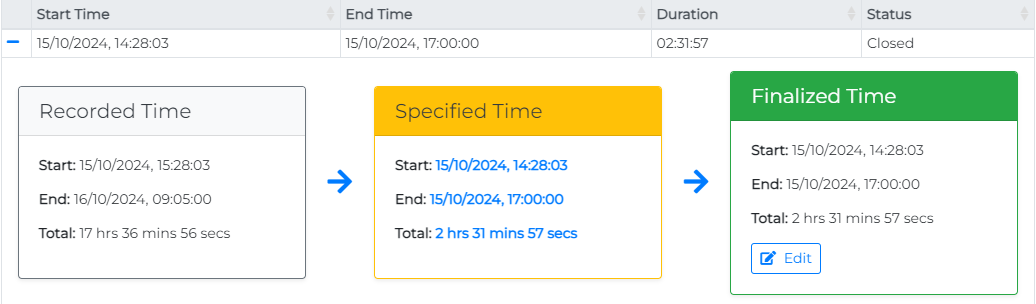
If a Timeblock is inaccurate— for example, if the operative was unable to stop the Timeblock due to poor connectivity or forgot to stop the task—they can override the final task times from the task finalization menu.
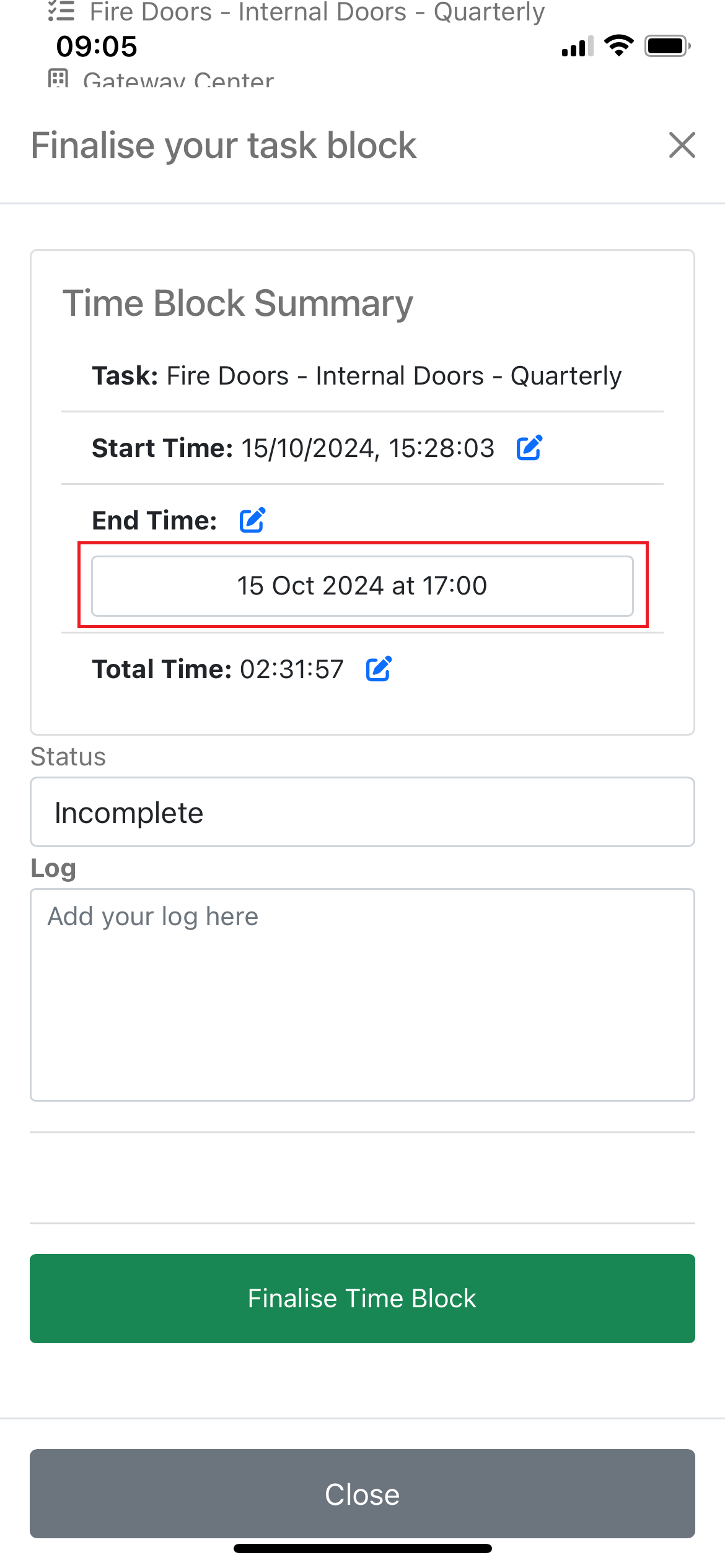
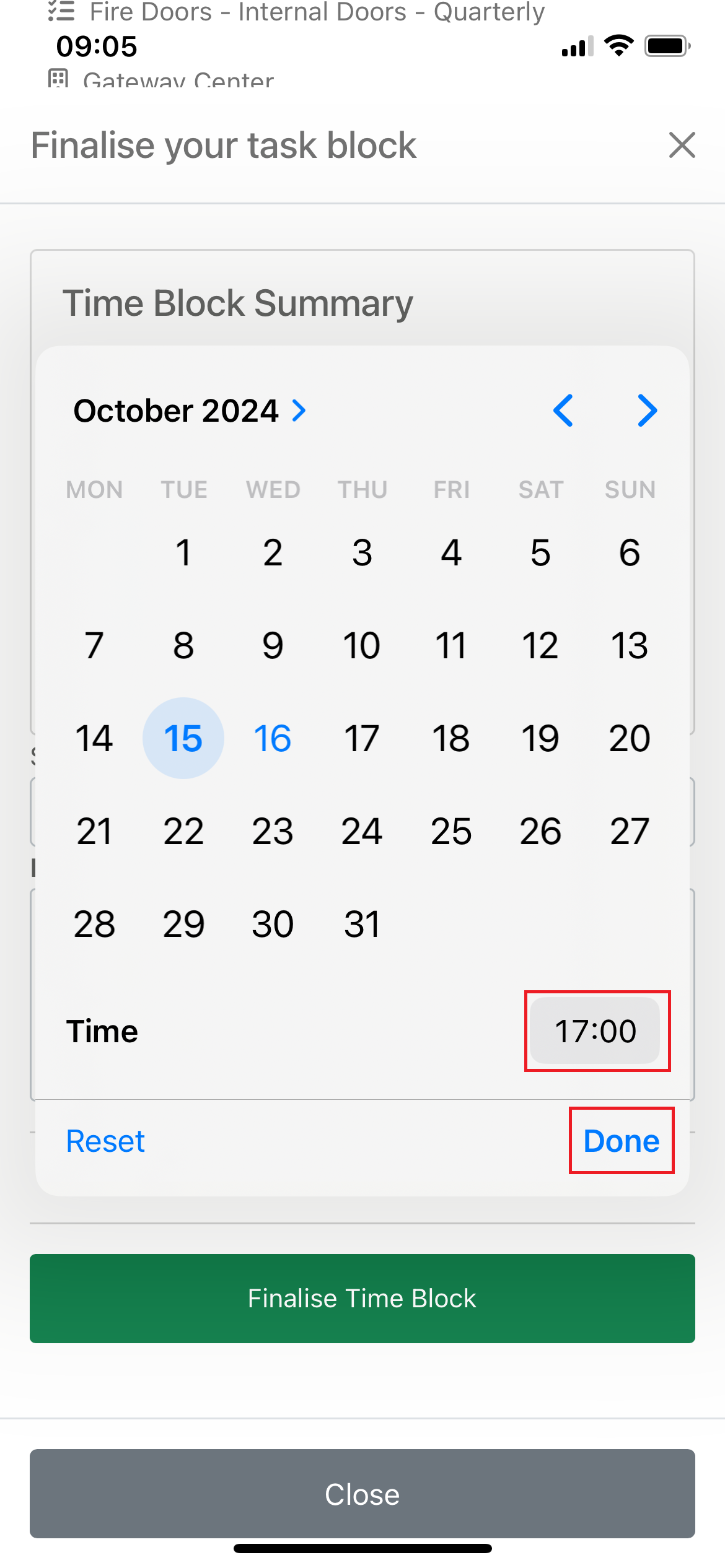
Clicking the edit icon next to the Start, End, or Total Time will allow the operative to override the final task time. This action will replace the final time text with an interactable input. Clicking on this input will open the device's date/time picker, where the operative can select the correct timings.
Note: When an Admin is reviewing the task, they can clearly see any amendments to the Timeblock and may override the final timings themselves. It is the responsibility of the operative to ensure these timings are accurate. However, from the system's perspective, the final responsibility lies with the Maintenance System Admins, as the finalised time they accept/set is what is carried through to billing.
Timeblock Submitted
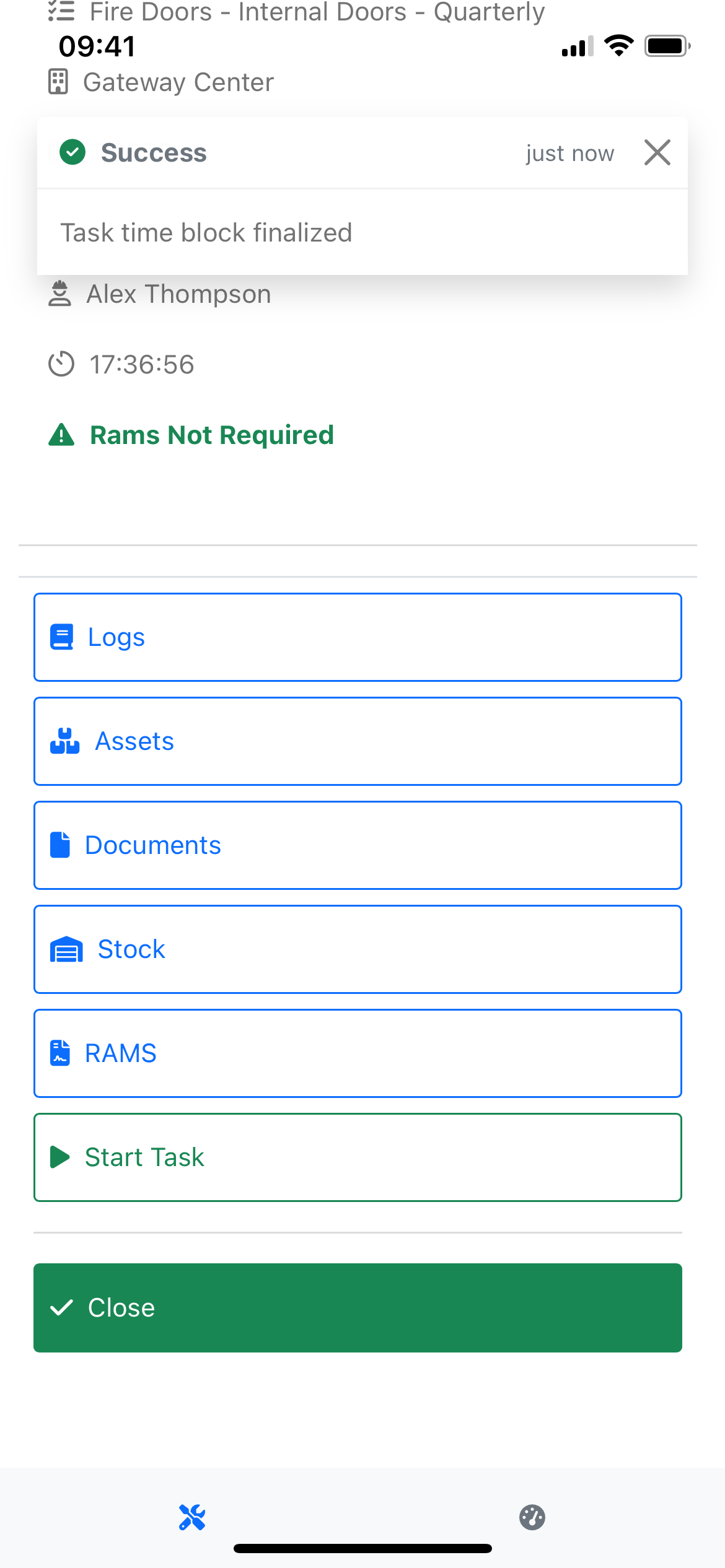
When the task is finalised, the operative will see a successful Task Timeblock Finalised toast message and will return to the Task Overview.
Please Note: Once a task Timeblock is finalised (or the finalization form is dismissed), the operative cannot return to this screen to amend Timeblock details. At this point, only a Maintenance System Admin can interact with the Timeblock.