Task Logs
Logs are general messages that can be added and viewed by any user with the appropriate permissions. Task Logs serve as the primary source of communication between operatives and admins.
Viewing Task Logs
When a task is created, there are no logs associated with it. An operative with full access to the log system will see two tabs that they can toggle between: 'Existing Logs' and 'Add Log'.
By default, clicking the Logs button will display any existing logs. If no logs have been added, the user will see the 'No Logs' alert.

Log Content
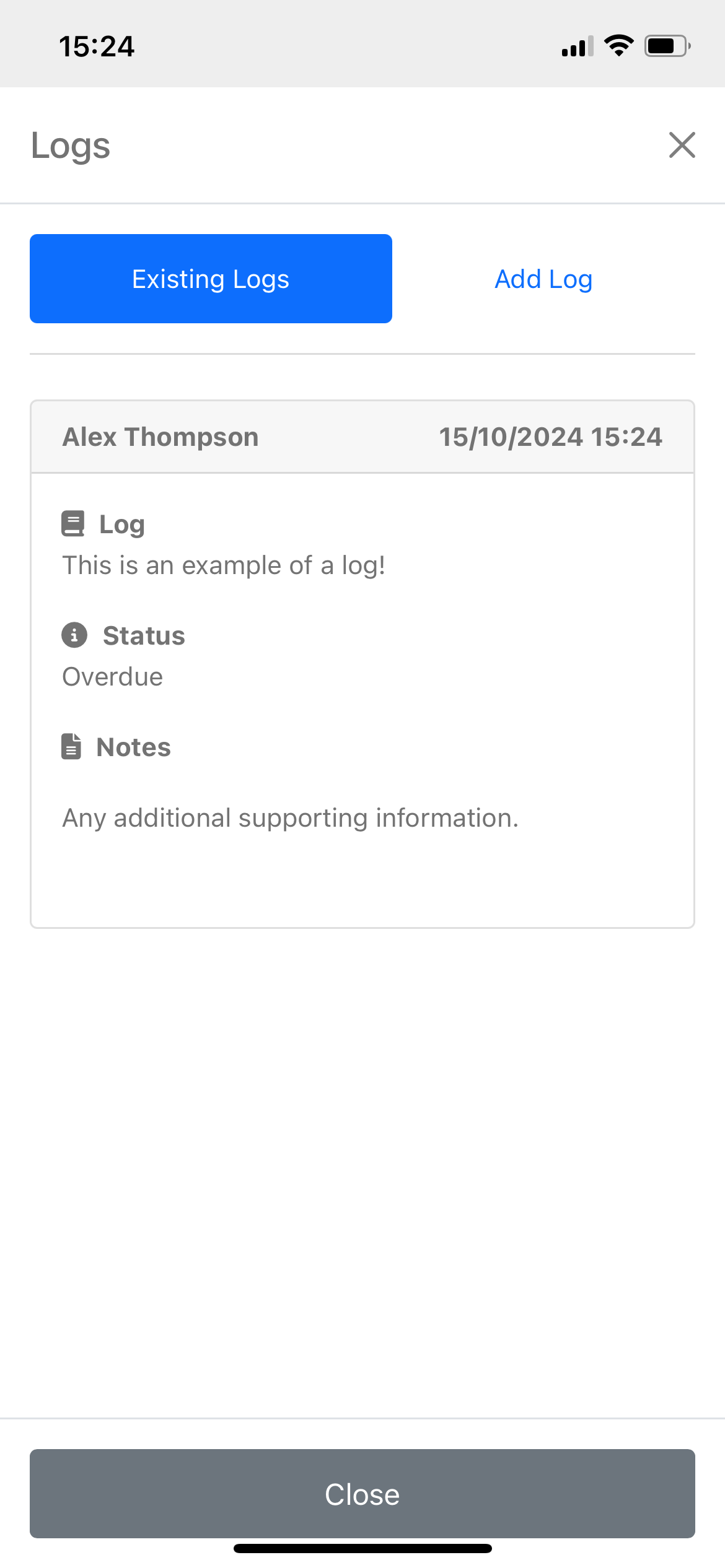
Logs are presented to the user as cards. Each card's header displays the name of the user who added the log on the left and the date the log was added on the right.
Card Structure:
-
Header:
- Left: Name of the user who added the log
- Right: Date the log was added
-
Content:
- Comment/Log
- Priority (at the time of the log)
- Formatted Supporting Information (if added)
Adding a Log
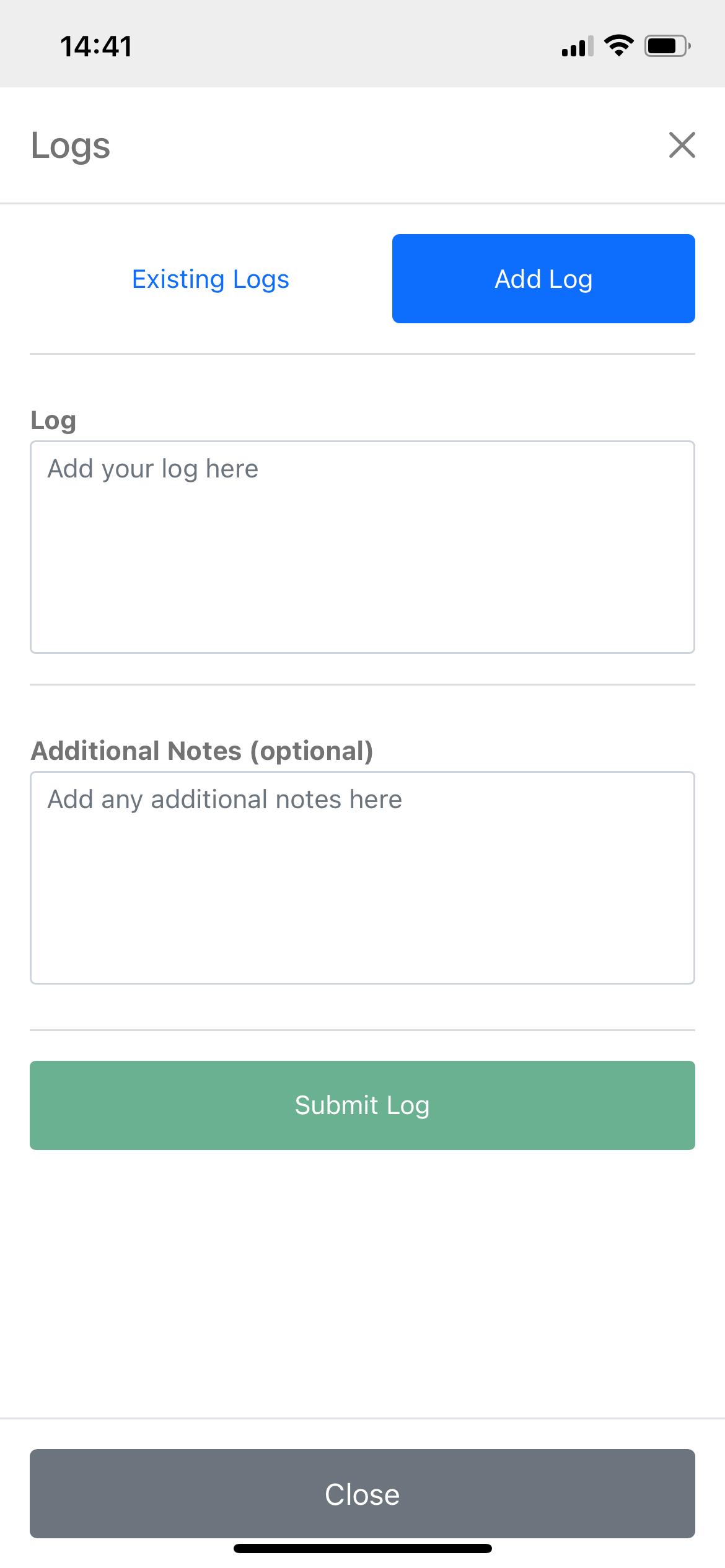
To add a log, click on the 'Add Log' tab. This will open the Add Log controls.
Fields Required to Add a Log
1. Log
- Description: The log is required. Enter text here to enable the Submit button. The button remains disabled when this field is empty.
2. Additional Notes (optional)
- Description: Additional notes can be optionally added to provide supplementary information to the log.
- On Mobile: Only additional text can be added.
- On Desktop: Users have access to a rich text editor, allowing for formatted content including links and lists.
Desktop 'Add Log' Field with Rich Text Editor
