Task Overview
Task Information Card
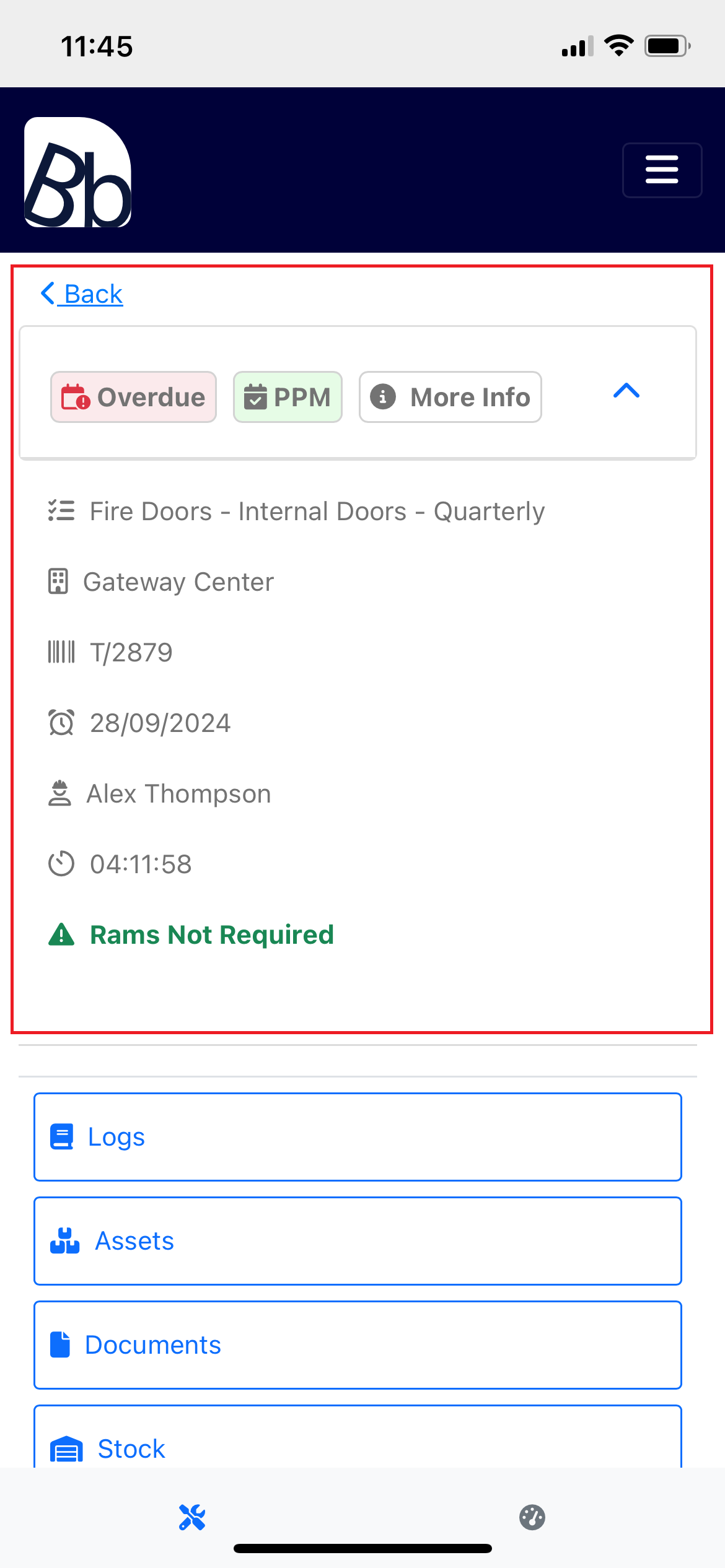
The Task View is divided into two sections. The top section features the Task Information Card.
The task Status Badge and Type Badge are displayed at the top of the Task Information Card (highlighted below). The More Info Badge can be clicked to view additional task information.
Key Details Displayed:
- Task Item
- Building
- Task Reference
- Due Date
- Assigned Operatives
- Total Time on Task
- RAMS Status
More Info
Clicking the More Info badge will load and display additional task information, such as the full task description.
Sections within More Info:
- Task Status/Time
- Task Description
- Task Information
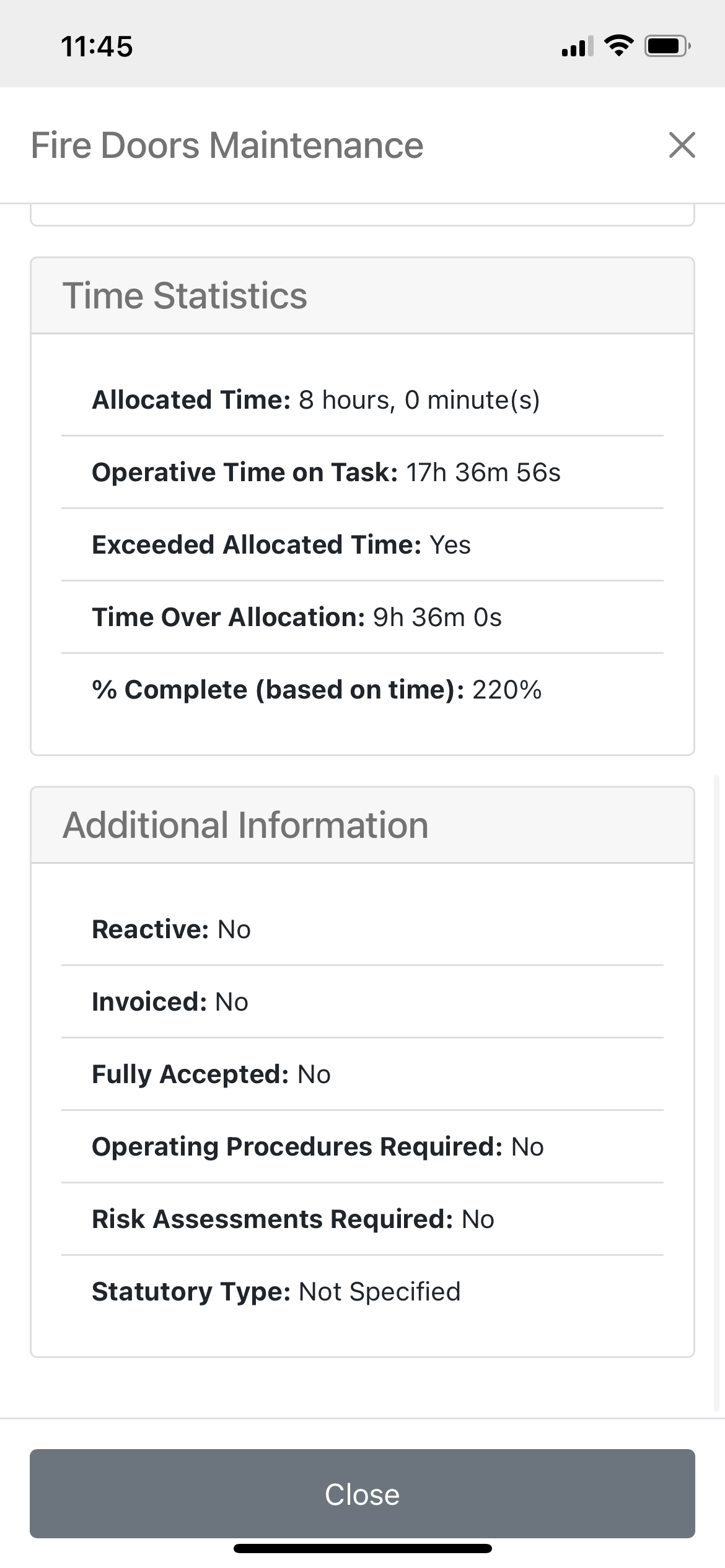
- Time Statistics
- Additional Information
Task Status/Time
The first colored card displays the current status of the task, as well as the start and end times, either set by an admin or generated by the system.
Task Description
The Description card displays the full description of the task. These descriptions are populated by system admins when creating task templates, actions, or reactive tasks.
Task Information
The Task Information Card shows the same details as the default task card, along with the task's frequency, priority, type, and operative type.

Time Statistics
- Allocated Time: The expected time to complete the task.
- Operative Time on Task: How long you—the operative—have committed to this task.
- Exceeded Allocated Time: Indicates whether the task has exceeded its expected completion time. This figure is based on total committed time from timeblocks. If the operative has overridden their committed time, this will be visible to the admin when finalizing the task.
- Time Over Allocation: The total time the task has exceeded its expected completion time.
- % Complete (based on time): The percentage of time committed to the task relative to the expected completion time.
Additional Information
- Reactive: Indicates whether this task is reactive.
- Invoiced: Indicates whether this task has been invoiced.
- Operating Procedures Required: Indicates whether the operative must acknowledge any operating procedures before undertaking the task.
- Risk Assessments Required: Indicates whether the operative must acknowledge any risk assessments before undertaking the task.
- Statutory Type: Indicates whether the task is statutory or preventive maintenance.
Task Controls
The Task Controls allow operatives to interact with a task. These controls can vary based on permissions assigned by system admins. If a control is missing or does not function as described in this documentation, please contact a system admin to discuss your operator permissions.
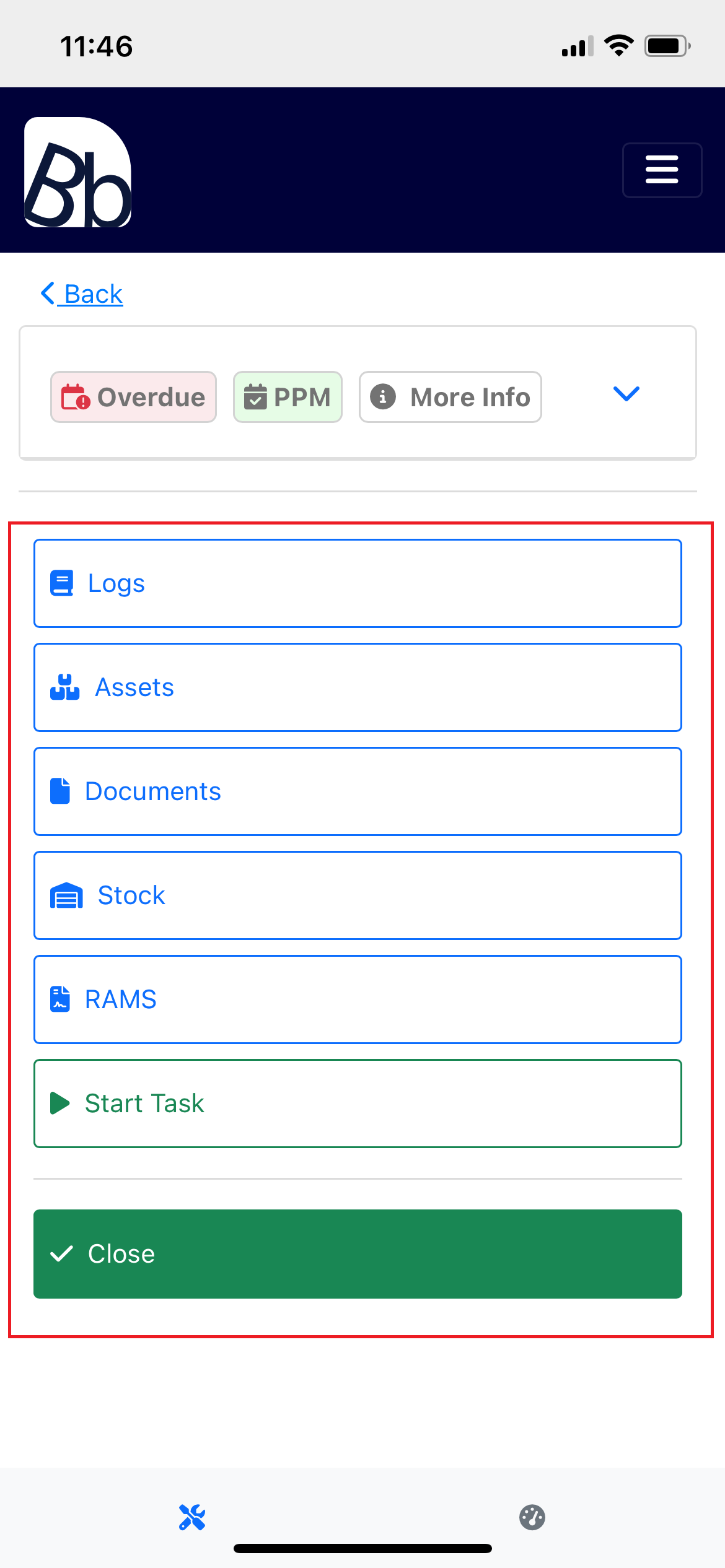
Logs
Allows you to view and add logs related to the task.
Assets
View and manage assets associated with the task.
Documents
Access documents relevant to the task.
Stock
Manage stock items required for the task.
RAMS
Review Risk Assessments and Method Statements (RAMS) before starting the task.
Start/Stop
Start or stop time tracking for the task.
Close
Mark the task as complete when finished.